
Change someone's role or remove them
- How-to
- Team Settings
- Who can do this: Admin, Warehouse Manager
- Checked on 27 October 2026
Give a member of your staff different Staff Roles, or remove them from your team when they leave.
In short
In Team Settings, select the roles shown beside the person under Team Members, tick their new roles and select Save. To take someone off your team, select Remove beside them.
Before you start
You need to be an Admin or a Warehouse Manager. A Warehouse Manager can change or remove only people whose roles are all Warehouse Operative, Floor Supervisor or QA Checker. For anyone else, ask an Admin.
You can't change or remove yourself. The team's owner is always an Admin: they aren't listed under Team Members, and nobody can change or remove them.
Your clients' people show under Team Members with their client's name. Change and remove them under People on the client's Client 360.
Steps
Change someone's roles
-
Select your team's name at the top of the screen, then Team Settings.
-
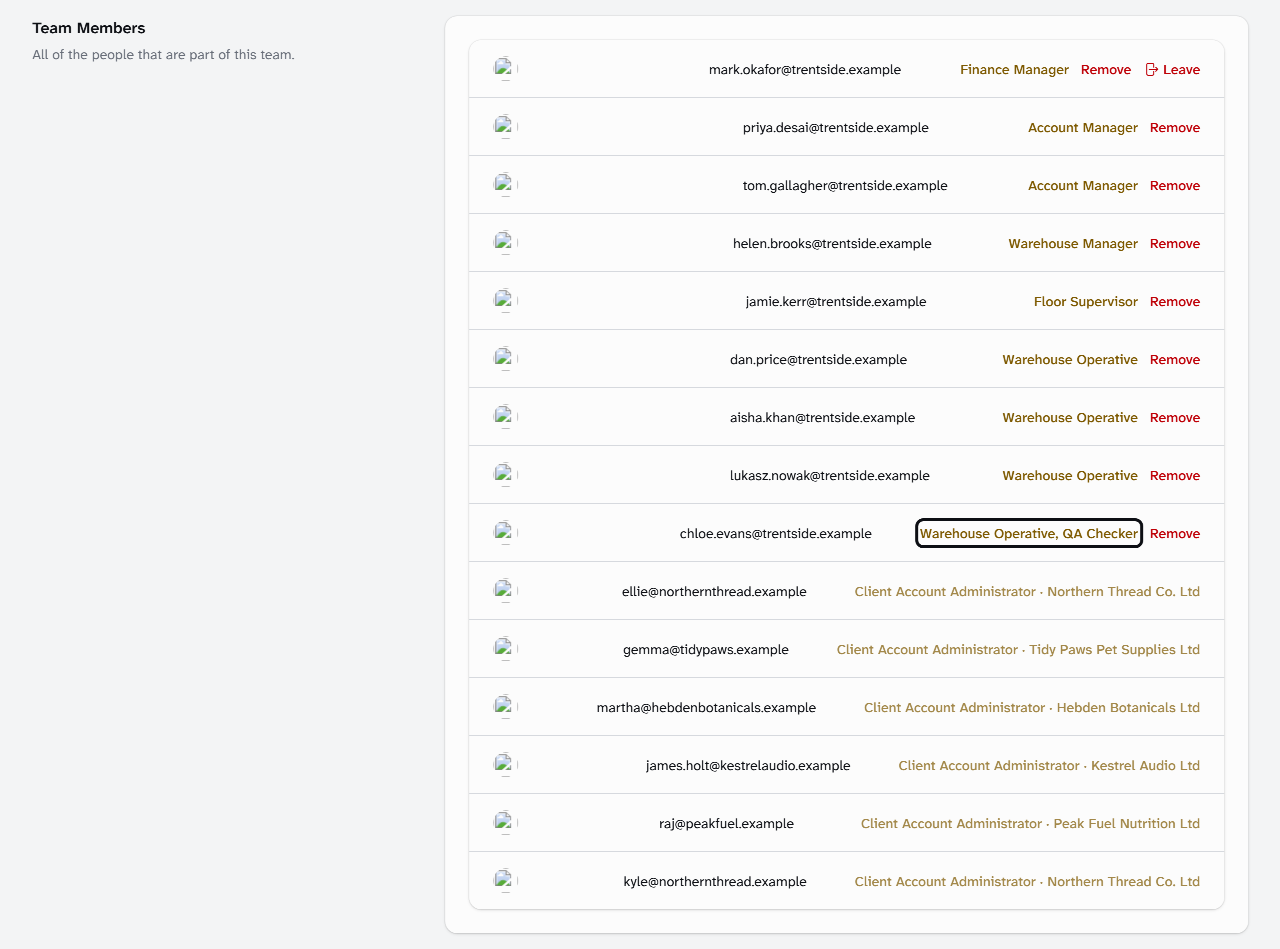
Under Team Members, find the person by their email address, and select the roles shown beside them.
-
In Manage Role, tick each role they should hold and untick the rest. A QA Checker also needs Warehouse Operative, Floor Supervisor or Warehouse Manager, or Stockist says:
QA Checker is given alongside Warehouse Operative, Floor Supervisor or Warehouse Manager.
-
Select Save. The new roles show beside the person straight away, and apply from their next step in Stockist.
Remove someone from your team
- Select your team's name at the top of the screen, then Team Settings.
- Under Team Members, find the person by their email address, and select Remove beside them.
- Select Confirm. The person leaves Team Members and can no longer reach your team.
What happens next
A removed person's Staff Badge stops working at once. Their past work stays on record under their name.
Was the person named as a warehouse's Warehouse Manager or a client's Account Manager? Name someone else, so work and alerts reach the right person. To bring someone back, invite them again with Invite your team and give each person a role.
Still stuck? Email [email protected]