
Invite your team and give each person a role
- How-to
- Team Settings
- Who can do this: Admin, Warehouse Manager
- Checked on 27 October 2026
Add a new user to your team by email, and choose the Staff Roles they hold, from Warehouse Operative to Admin.
In short
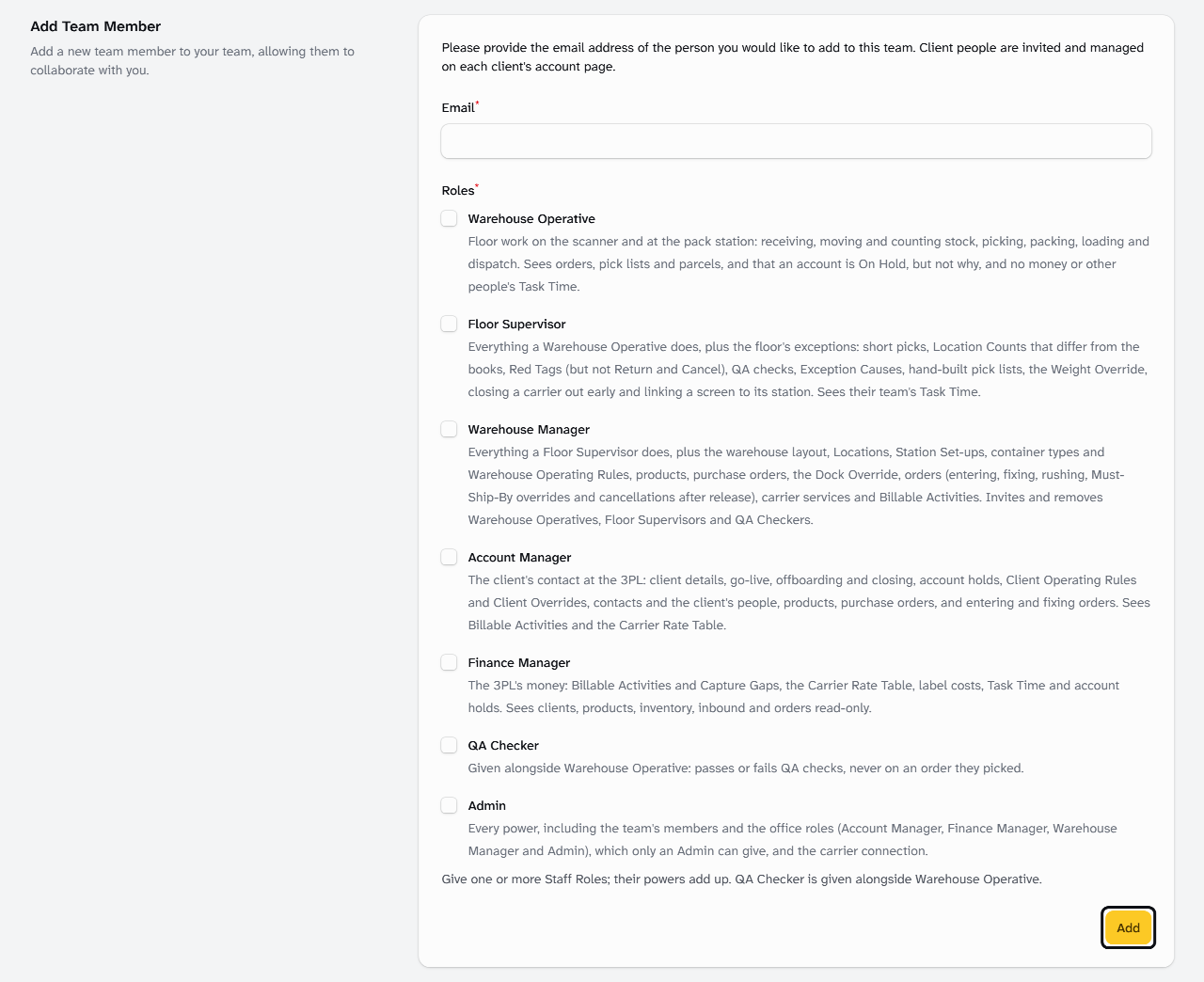
Open Team Settings, enter the person's email under Add Team Member, tick their Roles and select Add. They join your team once they accept the emailed invitation.
Before you start
You need to be an Admin or a Warehouse Manager. A Warehouse Manager can give only the Warehouse Operative, Floor Supervisor and QA Checker roles. For other roles, ask an Admin. If you don't see Team Settings, ask an Admin.
Have the person's email address to hand, and know which Staff Roles their job needs. What each Team Role can do says what each one can do.
Invite your clients' people under People on the client's Client 360, not here.
Steps
-
Select your team's name at the top of the screen, then Team Settings.
-
Under Add Team Member, enter the person's email address in Email.
-
Under Roles, tick each role the person needs. Their powers add up, so tick only what their job needs.
-
If you tick QA Checker, tick Warehouse Operative, Floor Supervisor or Warehouse Manager too. A QA Checker always holds one of those.
-
Select Add. The person shows under Pending Team Invitations, with the roles you gave them.
If the invitation is refused
Stockist says why under the field. If you tick QA Checker without a floor role, tick one as well:
QA Checker is given alongside Warehouse Operative, Floor Supervisor or Warehouse Manager.
If the person is already a member, change their roles instead:
[email protected] already has access to this team.
If they have been invited already, their invitation is waiting under Pending Team Invitations:
[email protected] has already been invited.
Send an invitation again, or cancel it
- Under Pending Team Invitations, find the person's email address.
- Select Resend to send the email again, or Cancel to withdraw the invitation. Select Confirm when asked.
The link in an invitation works for 7 days, so resend it if the person didn't accept in time.
Rename your team
A new team starts as My Workspace. Your staff and your clients' people see its name at the top of every screen and in their invitations.
- Admin only: select your team's name at the top of the screen, then Team Settings.
- Under Team Name, enter your company's name, such as
Trentside Logistics. - Select Save. Stockist shows "Saved", and the new name shows at the top of the screen.
What happens next
The person gets an email headed "Team Invitation" and selects Accept Invitation in it. Someone new to Stockist then gets an email with a link to set their password. Another asks them to verify their email address.
Once they accept, they show under Team Members with their roles, and they can sign in. Their name shows as their email address until they change it under Profile.
To change their roles later, or remove them, see Change someone's role or remove them.
Still stuck? Email [email protected]