
Create containers and print their labels
- How-to
- Stock Containers
- Who can do this: Admin, Warehouse Manager, Floor Supervisor, Warehouse Operative
- Checked on 27 October 2026
Bring a new pallet, tote or cage into service with its own barcode, and print Container Labels for one container, a few, or a whole type.
In short
Go to Stock Containers › Containers, select New Container, choose its Container Type and select Create. Then select the arrow beside it, Print Label and Generate PDF Labels, and stick the label on.
Before you start
You need to be a Warehouse Operative, a Floor Supervisor, a Warehouse Manager or an Admin. If you don't see New Container, ask a Warehouse Manager.
The Container Type must exist and be active. If it doesn't, ask a Warehouse Manager or an Admin to set it up.
Steps
Bring a container into service
-
Go to Stock Containers › Containers and select New Container.
-
Choose the Container Type, such as UK Pallet. Next Barcode shows the barcode it will get, such as
PAL-000037.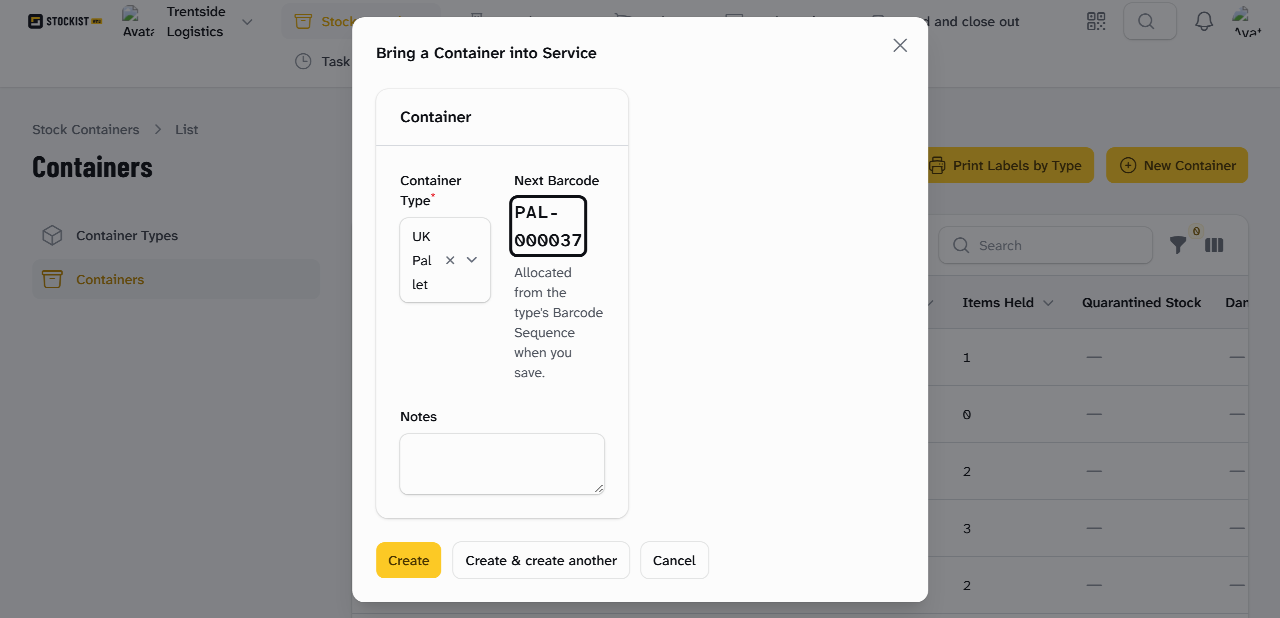
-
Add Notes if your team needs them.
-
Select Create, or Create & create another to add more of the same. The container shows in the list with its barcode.
Its Location shows Not yet placed until someone moves it into a location.
Print its label
- In Stock Containers › Containers, select the arrow beside the container, then Print Label.
- Choose the Label Format. Grid Multi-Label Sheet (A4 / Letter) is for a sheet printer. Continuous Thermal Roll (100×50mm / 4×2" / 4×6") is for a label printer.
- Choose the Paper / Media Size. For a sheet, set Columns per Page and Rows per Page to match your label stock.
- Select Generate PDF Labels. A PDF downloads, ready to print.
Print several labels at once
- A few containers: tick them in the list, select Bulk actions, then Print Selected Labels.
- Every container of one type: select Print Labels by Type, choose the Container Type, then the layout as above.
Each Container Label carries the container's barcode and its Container Type. A closed container's label also shows its clients and weights. You can also reprint a label from the Rapid Scanner: scan the container and select Print label. It prints on your warehouse's label printer, and Print again beside the result prints another.
What happens next
Stick the label where a scanner can reach it, then move the container into its first location. Its barcode is never given to another container, even after it is deactivated.
Still stuck? Email [email protected]