
Set up a Container Type and its barcode prefix
- How-to
- Stock Containers
- Who can do this: Admin, Warehouse Manager
- Checked on 27 October 2026
Add a kind of pallet, tote or cage with its size, weights, Mixing Policy and Barcode Prefix, so your team can bring containers of it into service.
In short
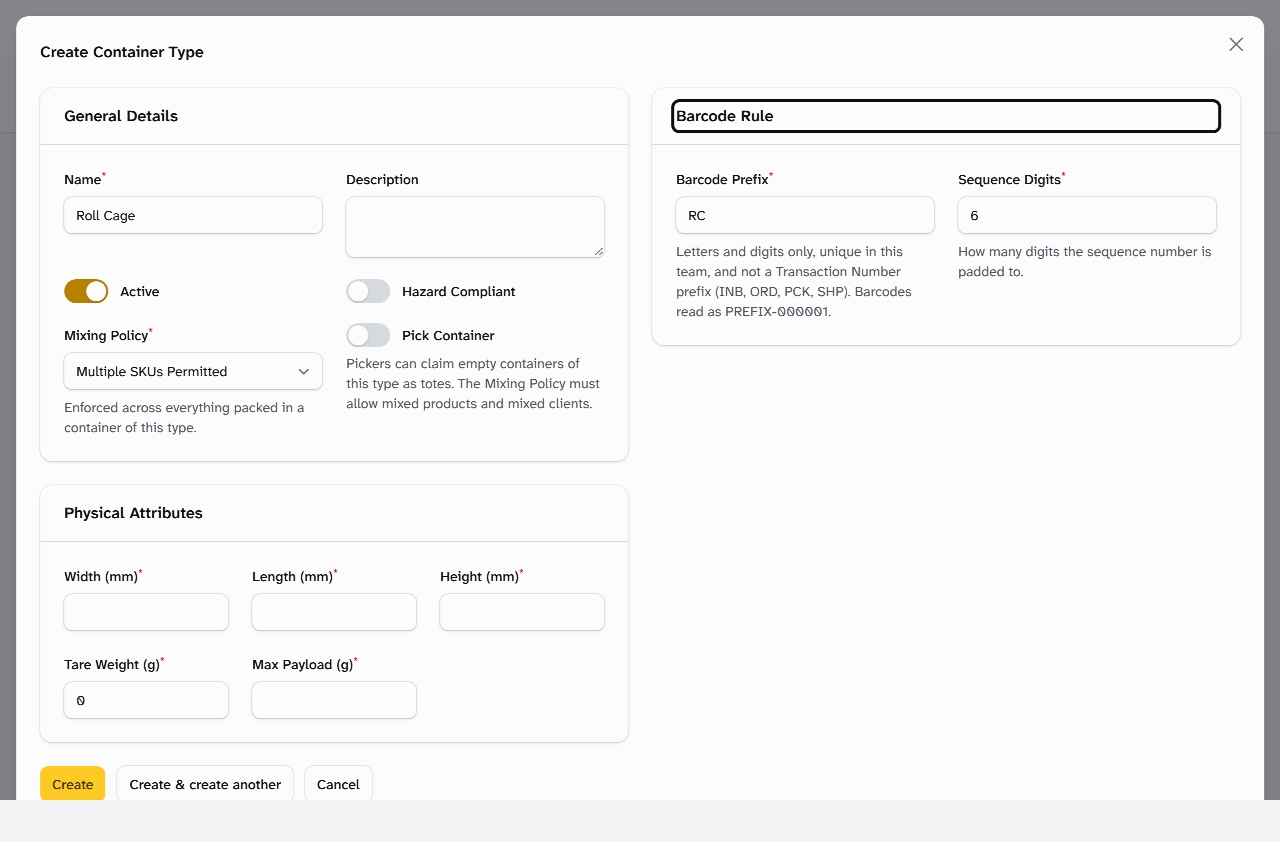
In Stock Containers › Container Types, select New Container Type. Enter its name, Mixing Policy, Barcode Prefix, size and weights, then select Create.
Before you start
You need to be an Admin or a Warehouse Manager. If you don't see New Container Type, ask an Admin.
Measure the container's outside in millimetres, and its empty weight and the most it may carry in grams. Stockist checks these whenever stock or a container goes somewhere.
Decide first
- The Barcode Prefix. Choose short capitals that say what the container is. Each Barcode Prefix belongs to one Container Type, and once used it never starts again from 1.
INB,ORD,PCKandSHPare kept for Transaction Numbers. - The Mixing Policy. Multiple SKUs Permitted and Multiple Clients Permitted both let one container hold several products and several clients' stock. The other three keep it to one product, one client, or both.
Steps
-
Go to Stock Containers › Container Types and select New Container Type.
-
Enter the Name, such as
Roll Cage. -
Leave Active on. Turn Hazard Compliant on only if the container is built for hazardous goods.
-
Choose the Mixing Policy.
-
Turn Pick Container on if pickers may claim empty containers of this type as totes.
-
Enter the Barcode Prefix, such as
RC. Leave Sequence Digits at 6 unless your labels need another length. -
Enter Width (mm), Length (mm), Height (mm), Tare Weight (g) and Max Payload (g).
-
Select Create. The type shows in the list, with its Next Barcode, such as
RC-000001.
If Stockist refuses it
Stockist says why under the field:
This prefix is reserved for Transaction Numbers (INB, ORD, PCK, SHP), so it cannot be a container barcode prefix.
Another Container Type in this team already uses this prefix.
The prefix may only contain letters and digits.
A Pick Container type must allow mixed products and mixed clients, since a batch tote holds both. Choose another Mixing Policy, or leave it unmarked.
Change a Container Type
- In Stock Containers › Container Types, select the arrow beside the type, then Edit.
- Change what you need and select Save changes.
Containers in service keep their barcodes, and new ones get the new prefix with its own count. Turn Active off to stop new containers of the type: existing ones carry on.
What happens next
Your team can now bring containers of the type into service and print their labels: see Create containers and print their labels. Each container of the type takes its size, weights, hazard compliance and Mixing Policy from it: see What Stockist checks before stock goes into a location.
Still stuck? Email [email protected]