
Print location labels
- How-to
- Warehouses
- Who can do this: Admin, Warehouse Manager, Warehouse Operative
- Checked on 27 October 2026
Print barcode labels for a zone, an aisle, a batch or chosen locations, on A4 sheets or a thermal roll, ready to stick on the racking.
In short
On Warehouses › Locations, select Print Labels, choose the warehouse, zone, aisle or Batch ID, then select Generate PDF Labels. Print the PDF on A4 label sheets or a thermal printer.
Before you start
You need to be an Admin, a Warehouse Manager or a Warehouse Operative. If you don't see Print Labels, ask an Admin.
The locations must exist first, each with a Barcode: batch-generated locations get their code as their barcode. Have label stock to hand: A4 label sheets, or a thermal roll of 100 × 50 mm, 4 × 2 in or 4 × 6 in labels.
Steps
Print a set of labels
-
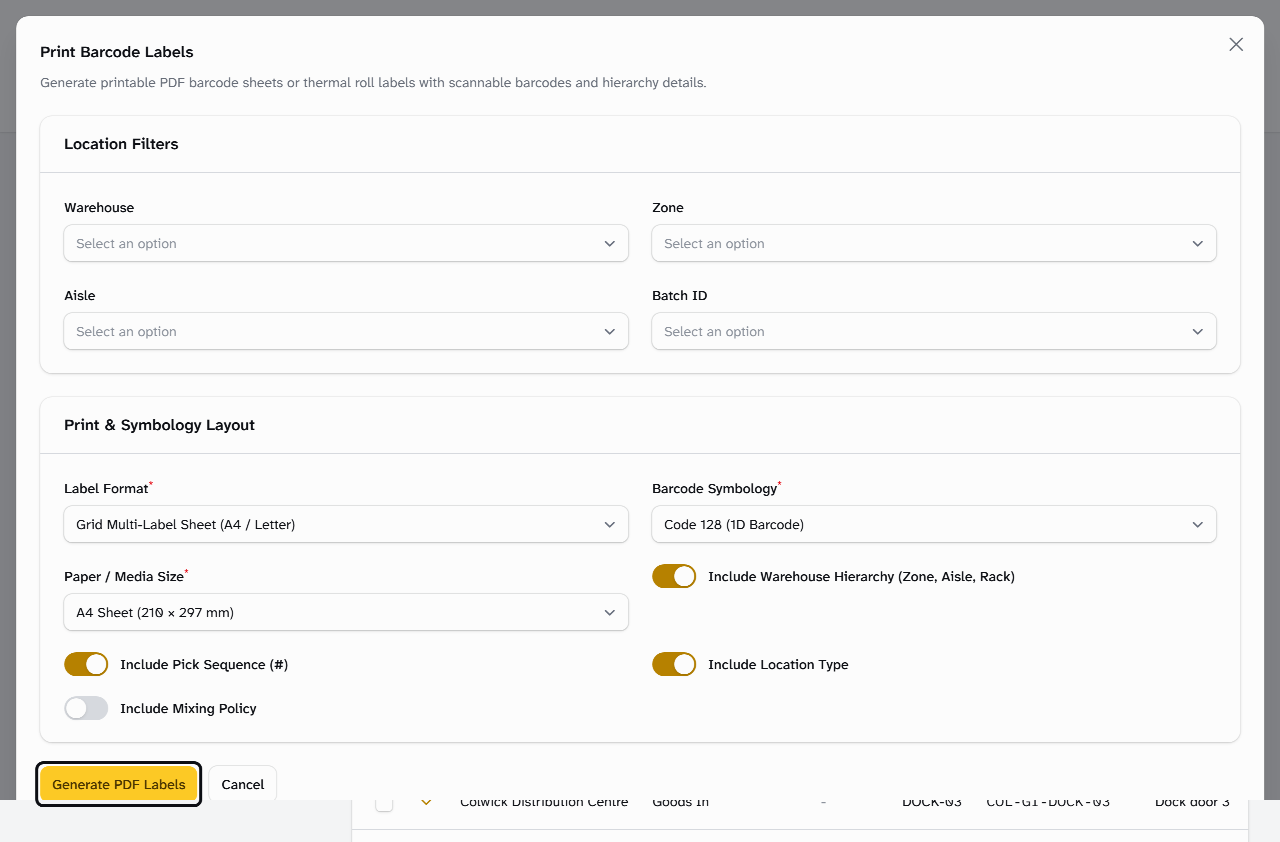
Go to Warehouses › Locations and select Print Labels.
-
Under Location Filters, choose the Warehouse, and a Zone or Aisle to print only those. To print one batch, choose its Batch ID, such as
COL-PF-2025. Leave them all empty to print every location. -
Choose the Label Format: Grid Multi-Label Sheet (A4 / Letter) for a sheet printer, or Continuous Thermal Roll (100×50mm / 4×2" / 4×6") for a label printer.
-
Choose the Paper / Media Size to match your label stock. For a sheet, set Columns per Page (up to 6) and Rows per Page (up to 12) to match the labels on the sheet.
-
Leave Barcode Symbology at Code 128 (1D Barcode), which every handheld scanner reads.
-
Choose what else each label shows: Include Warehouse Hierarchy (Zone, Aisle, Rack), Include Pick Sequence (#), Include Location Type and Include Mixing Policy.
-
Select Generate PDF Labels. The PDF downloads, with the labels in Pick Sequence order.
Print labels for chosen locations
- On Warehouses › Locations, tick the locations, or search for them first, such as
A-08. - Select Bulk actions, then Print Selected Labels.
- Choose the layout as above, then select Generate PDF Labels.
To print one location's label, select Actions, then Print Label, in its row.
Reprint one label on the floor
- On the Rapid Scanner, scan the location, or its neighbour's label if its own won't scan.
- Select Print label. The result says "Printing" and the location, and the label prints on your warehouse's label printer, in its default format.
- If it didn't come out, select Print again beside the result.
The scanner has no choice of format or symbology: use Print Labels at a desk for those.
What happens next
Print the PDF at 100% scale, not "fit to page", so the labels line up with the sheet. Stick each Location Barcode Label on the shelf edge under its location. Then scan one with a handheld to check it reads as the right location.
If Stockist shows No locations match the selected criteria., the filters left nothing to print: choose a different zone, aisle or batch.
Still stuck? Email [email protected]