
See your stock
- How-to
- Inventory
- Checked on 27 October 2026
See how much of each product your 3PL holds for you, and each line of stock with its lot, expiry date, place in the warehouse and status.
In short
Products › Products shows how many of each product are Available and Reserved. Inventory › Inventory Items lists every line of your stock, with its location, lot, expiry date and status.
Before you start
Everyone your company invites can see your stock: Client Viewers, Client Users and Client Account Administrators. Only your 3PL moves, counts or holds stock, so ask your account manager for any change.
Steps
How much you have
- Go to Products › Products.
- Read Available and Reserved for each product, scrolling the list sideways if you need to. Available stock is free for new orders; Reserved stock is set aside for orders already placed.
Each line of your stock
-
Go to Inventory › Inventory Items. Each line is one lot, serial number or pallet of a product in one place.
-
To find a product, lot or serial number, enter it in Search, such as
ROSE-2503. -
To see only some statuses, select Filter, choose them under Status and select Apply filters. The list also keeps stock that has been sent out (Shipped) or thrown away (Scrapped).
-
Select a line to see its Inventory Status, lot, expiry date, location and Stock Container.
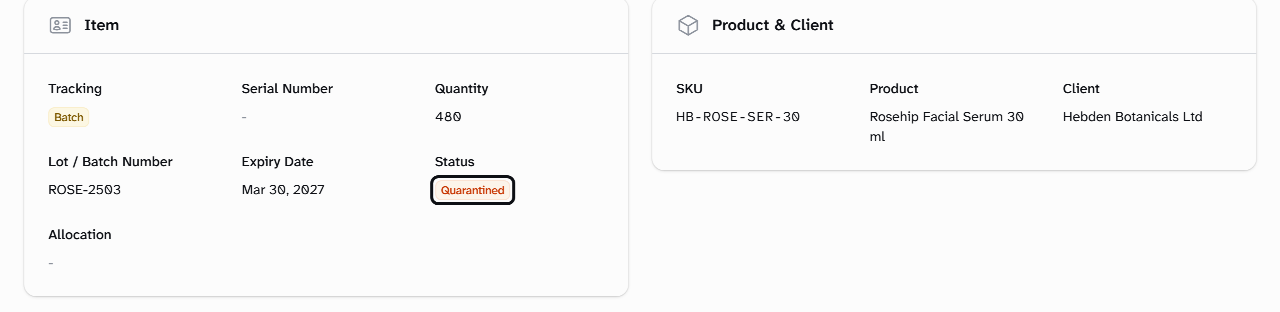
On a narrow screen, scroll the list sideways to see Lot / Batch Number, Expiry Date and Status. Serial Number shows Batch for stock that isn't tracked unit by unit.
What happens next
Quarantined stock isn't sent out until your 3PL releases it. Hebden Botanicals' rosehip serum was reported separating, so Martha Shaw asked for lot ROSE-2503 to be held. Its 480 units show as Quarantined.
To have stock held, released, counted or sent back to you, contact your account manager. New stock appears here once a delivery is received: see Follow your deliveries into the warehouse.
Questions about your stock or deliveries go to your account manager.
Still stuck? Contact your 3PL's account manager.