
Read the Warehouse Floorplan
- How-to
- Warehouses
- Who can do this: Admin, Warehouse Manager, Warehouse Operative
- Checked on 27 October 2026
See a warehouse's zones and racks from above, coloured by how full they are, by Location Type or by locations in maintenance.
In short
Go to Warehouses › Floorplan and choose the warehouse. Each rack is coloured by how full its locations are; select a zone, aisle or rack to see its details.
Before you start
Anyone who can see Warehouses can read the Warehouse Floorplan. It is easiest at a desk, with a mouse.
It draws each zone, aisle and rack at its Grid Coordinate. That is the Grid X and Grid Y on its form, or where a batch placed it under Spatial Grid Configuration. Anything without one is drawn in the top-left corner, on top of the rest.
Steps
Open the floorplan
-
Go to Warehouses › Floorplan.
-
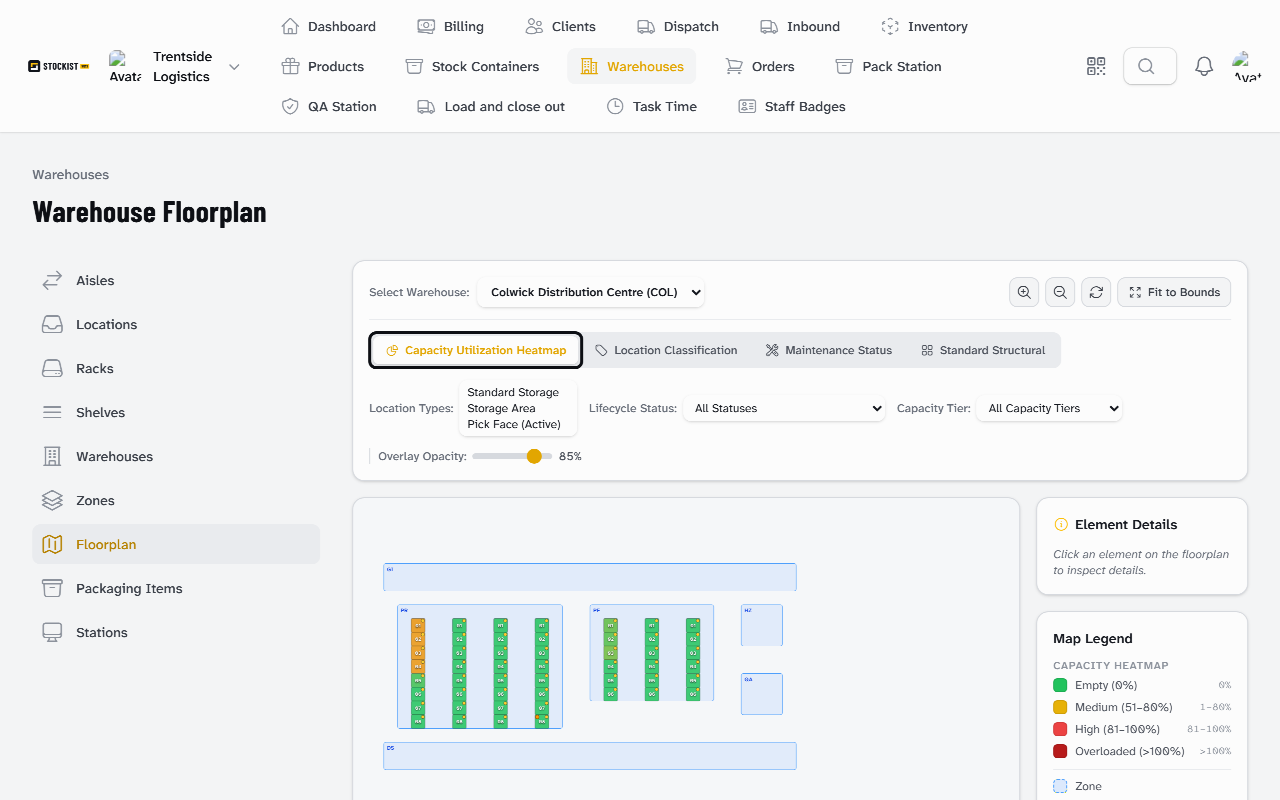
Choose the warehouse in Select Warehouse, such as
Colwick Distribution Centre (COL). -
To see one level of racking, choose it in Elevation Level (Z).
-
Drag the map to move around it, and use the mouse wheel or the zoom buttons to zoom. Select Fit to Bounds to see the whole warehouse again.
Choose what the colours show
- Select Capacity Utilization Heatmap to colour each rack by how full its locations are, by volume or weight, whichever is fuller. The Map Legend gives the colours, from green for empty to dark red for over capacity.
- Select Location Classification to colour each rack by its commonest Location Type.
- Select Maintenance Status to pick out racks with a location in maintenance. On every view, such a rack has an amber dot.
- Select Standard Structural for the layout alone.
- To show only some locations, use Location Types and Lifecycle Status.
See a rack's details
- Select a rack on the map. Element Details shows its code, zone, aisle, number of shelves and locations, and how full it is by volume and by weight.
- Select a zone or an aisle to see its code, name and size.
What happens next
The Occupancy Heatmap shows where there's room for the next delivery and which racks are near full. To take a damaged location out of use, flag it for maintenance. To place racks on the map, give the next batch a start under Spatial Grid Configuration when you create locations.
Still stuck? Email [email protected]