
Set up Carrier Services, Service Levels and rates
- How-to
- Dispatch
- Who can do this: Admin, Warehouse Manager, Finance Manager
- Checked on 28 October 2026
Add the carrier products you post by, the Service Levels clients sell, the Carrier Service each uses at each warehouse, and what each label costs.
In short
Add each carrier product under Dispatch › Carrier Services and each delivery promise under Dispatch › Service Levels. Then select Set Carrier Service for each warehouse, and a Finance Manager sets prices with Rate table.
Before you start
You need to be a Warehouse Manager or an Admin to add Carrier Services and Service Levels. The Carrier Rate Table is kept by a Finance Manager; Account Managers can see the services and rates.
Have the carrier's service codes and limits per parcel to hand, from its own price guide.
Decide first
- Name Service Levels by the promise, not the carrier. A Service Level, such as Standard or Next Day, is the delivery promise a client offers its shoppers. A Carrier Service, such as Tracked 48, is the carrier's product. Keeping them apart lets you change carrier without changing any client's orders.
- Set a Ship-By Limit only for a fast promise. A Ship-By Limit of 0 makes Next Day orders ship the day they are accepted. Leave it empty for Standard: the client's own Ship-By Rule then decides.
Steps
Add a Carrier Service
- Go to Dispatch › Carrier Services and select Add Carrier Service.
- Choose the Carrier, such as Royal Mail, and enter the Service, such as
Tracked 48. - Enter the Carrier's service code, such as
TPS48, as the carrier names it. - Tick Collected separately if the carrier collects this service apart from its others, with its own cage and times.
- Enter the Weight limit (g) and the Longest side (mm), Middle side (mm) and Shortest side (mm).
- Under Fields the carrier requires, tick any detail the carrier needs, such as Recipient phone.
- Select Create.
A parcel over any limit can't be closed at the Pack Station. An order missing a required field is held as Missing details, so the carrier never refuses it at the bench.
Add a Service Level
-
Go to Dispatch › Service Levels and select Add Service Level.
-
Enter the Service Level, such as
Economy. -
Enter the Ship-By Limit (Ship Days), from 0 to 5, or leave it empty for no limit.
-
Select Create. Until it has a Carrier Service at each warehouse, the page warns of a gap:
One Service Level has no Carrier Service at a warehouse: orders for it there would be held.
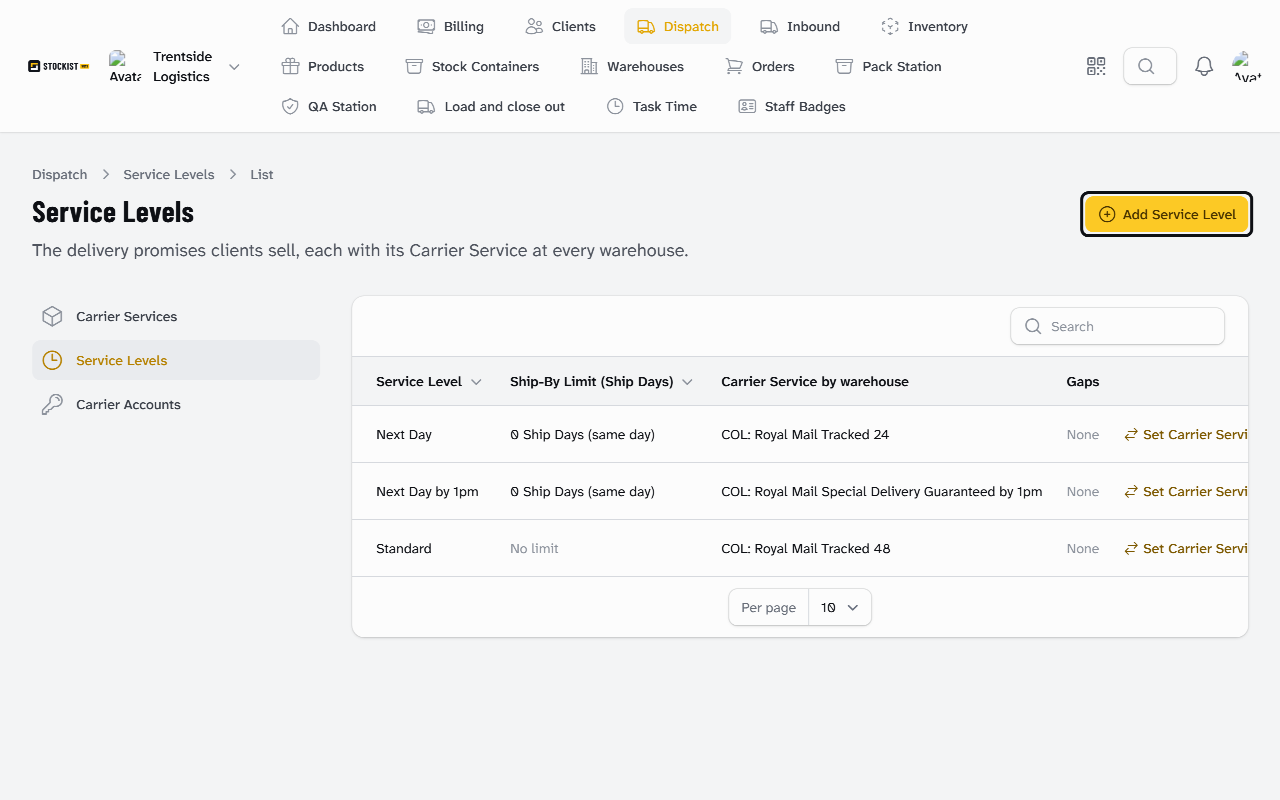
Choose its Carrier Service at each warehouse
-
In the Service Level's row, select Set Carrier Service.
-
Choose the Warehouse and the Carrier Service used there.
-
Select Submit:
Carrier Service set
-
Repeat for each warehouse. The Gaps column shows None once every warehouse has one.
The Carrier Service also needs a collection on each warehouse's Collection Timetable. Without one, its parcels have no cage to go to.
Set the label rates
-
Finance Manager: go to Dispatch › Carrier Services. In the service's row, select Rate table. It shows the rates in force today.
-
Set In force from to the day the rates start.
-
For each rate, choose the Size format, such as Small Parcel, and enter Up to (g) and Price (£, excl. VAT). Select Add a rate for the next one.
-
Add a Note if you like, such as where the prices come from, and select Save rates:
Rates saved
Saving replaces any table already set for that date. Tables for other dates stay as they are. See Carrier Rate Table.
What happens next
Each client's orders take its Default Service Level when they name none. A client can't go live without one that has a Carrier Service at its Dispatch Warehouse: see Bring a client live, or allow early receipt.
When a Shipment ships at Close-Out, Stockist works out its Label Cost from the rates in force that day. Each parcel is priced by its Size Format and weight. Finance Managers and Admins see Label Costs under Billing › Label Costs.
A Shipment with no rate ships without a Label Cost. A Finance Manager then opens the order and selects Enter Label Cost to record one by hand, with a reason.
Still stuck? Email [email protected]