
Load and close out a collection
- How-to
- Dispatch
- Who can do this: Admin, Warehouse Manager, Floor Supervisor, Warehouse Operative
- Checked on 28 October 2026
Scan each parcel into the cage for its collection, take parcels back out, and close the collection out when the driver comes so its orders ship.
In short
Go to Load and close out, choose the collection and scan each parcel's label as it goes into the cage. When the driver comes, select Close out: every fully loaded order ships.
Before you start
You need to be a Warehouse Operative, a Floor Supervisor, a Warehouse Manager or an Admin. Before the collection's time, only a Floor Supervisor or above can close out.
Each parcel must have its carrier label scanned onto it at the bench first: see Print labels, use Held Parcels and make a Manual Label. The collections come from the warehouse's Collection Timetable.
The screen works on a handheld scanner as well as a desk computer.
Steps
Load the cage
-
Go to Load and close out. Choose the Warehouse and the Collection, such as Royal Mail 17:30. The screen lists the collection's orders and parcels.
-
Scan each parcel's label as it goes into the cage. You can type its parcel name instead, such as
ORD-00000008-1:Parcel ORD-00000008-1 in the cage
-
Keep going until each order's Status says Loaded. Why it would miss names anything still stopping an order.
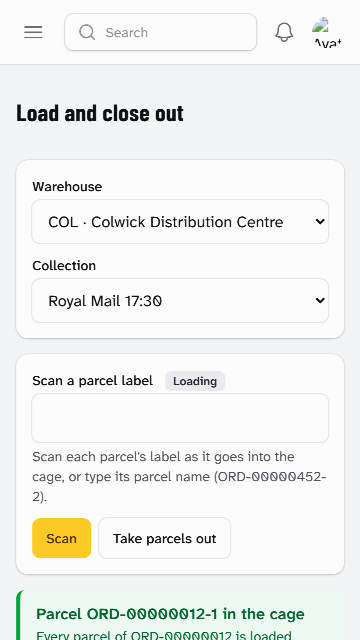
Each scan is a Load Scan. Stockist refuses a parcel that can't go in this cage, and says why:
- Wrong cage: the parcel is for another collection. Take it to its own cage.
- Label not scanned at the bench: put it on Held Parcels and take it back to a bench.
- Cancelled label or Can't load: put it on Held Parcels and tell your Floor Supervisor.
- Already in the cage: scan the next parcel.
Take a parcel back out
-
Select Take parcels out.
-
Scan each parcel you take out of the cage:
Parcel ORD-00000008-1 taken out
-
Put it on Held Parcels. Select Back to loading to carry on loading.
An order with a parcel taken out misses this collection unless the parcel is loaded again.
Close out the collection
-
When the driver comes, at or after the collection's time, select Close out. Stockist says how many Shipments ship now and how many miss the collection.
-
Select Close out again to confirm. Every fully loaded order with no hold becomes Shipped:
Closed out: 2 Shipments shipped
-
Select Print the manifest and give it to the driver if they want one.
-
If Missed Collections shows, take those parcels back out of the cage: see Handle Missed Collections and Carrier No-Shows.
Floor Supervisor only: to close out before the collection's time, select Close out early.
If the Manifest hasn't reached the carrier, the screen says Manifest pending. The orders are Shipped all the same, and Stockist keeps sending it. If the carrier is still making its document, select Ask the carrier again in a minute.
What happens next
A Close-Out makes each loaded order Shipped at that moment, and the client sees its tracking numbers. A Shipment that wasn't fully loaded, or was held, keeps its labels and goes on its next collection.
If nobody closes a collection out, Stockist closes it out at 18:00, or at the collection's time if later. It tells the warehouse's Warehouse Managers and the Floor Supervisors what shipped. The Warehouse Managers are told again if the manifest still hasn't gone by 18:30.
If the carrier doesn't come, a Floor Supervisor records a Carrier No-Show instead: see Record a Carrier No-Show.
Still stuck? Email [email protected]