
Keep client contacts and invite the client's people
- How-to
- Clients
- Who can do this: Admin, Account Manager
- Checked on 27 October 2026
Record who your team talks to at a client, by purpose, and invite, change or remove the client's people who sign in to see their account.
In short
On the client's Client 360, keep Contacts by purpose with Assign and Add contact, and invite the client's people under People with Invite person. Contacts are not sign-ins: only people sign in.
Before you start
You need to be an Account Manager or an Admin. The client's own Client Account Administrator can do the same for their client. If you don't see Invite person, ask the client's Account Manager.
The client must not be Closed. Client people are never invited in Team Settings, only on their client's Client 360.
Steps
Keep the client's contacts
Each Client Contact holds one or more Contact Purposes: Primary, Operations, Dispatch Alerts, Invoices and Escalation. A purpose nobody holds shows Unfilled.
- Go to Clients and select the client. Contacts lists each purpose and who holds it.
- To fill an unfilled purpose, select Assign under it. Choose an Existing contact, or leave it empty and enter the new contact's Name and an Email or Phone. Select Submit.
- To add a contact, open All contacts and select Add contact. Enter a Name, an Email or Phone, and tick its Purposes. Select Submit.
- To change or remove a contact, open All contacts and select Change contact or Remove contact beside it.
A contact can be a shared mailbox, such as Northern Thread's Accounts Payable. Set Linked user only if the contact also signs in for the client.
Invite the client's people
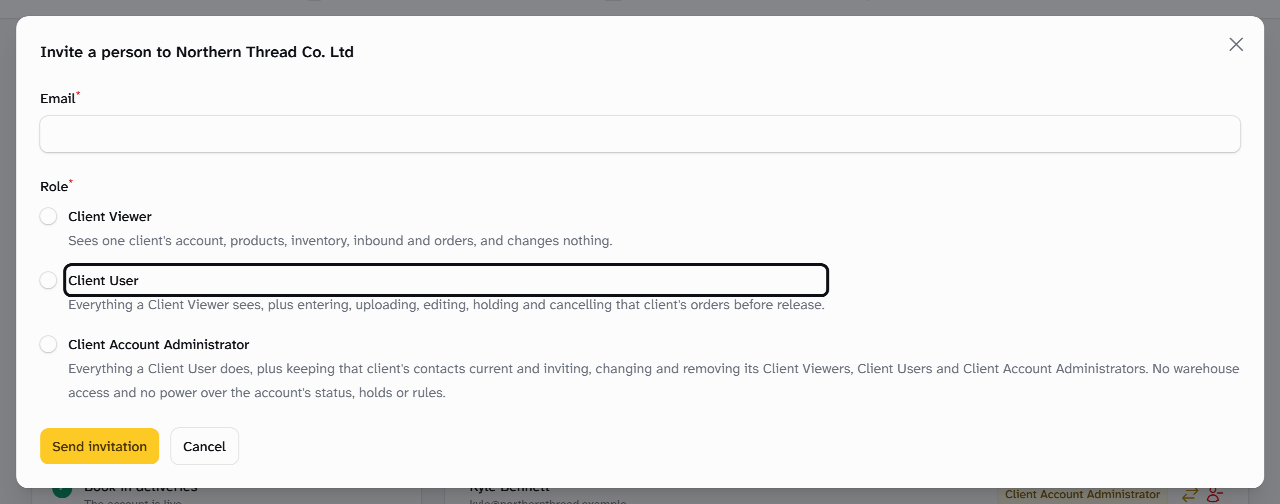
- Under People, select Invite person.
- Enter the person's Email.
- Under Role, select Client Viewer, Client User or Client Account Administrator. Each shows what it allows.
- Select Send invitation. Stockist shows "Invitation sent", and the person is listed under Pending invitations.
Change or remove someone
- Under People, find the person under Members.
- To change their role, select Change role, choose the new Role and select Submit.
- To take away their sign-in, select Remove, then Confirm. They can no longer sign in for the client.
- To withdraw an invitation, select Cancel invitation beside it under Pending invitations, then Confirm.
What happens next
Every change is in the client's history, and the client's people see it there too. Removing a person leaves any contact for them in place.
Once a client has a Client Account Administrator, they can keep their own contacts and people. Ellie Marsh at Northern Thread does, so Account health shows most of its changes as self-service.
Still stuck? Email [email protected]