
Download shipped orders and tracking
- How-to
- Orders
- Checked on 28 October 2026
Download a spreadsheet of the orders your 3PL shipped on the days you choose, with their tracking numbers, to update your shop.
In short
Go to Orders and select Download shipped orders. Choose the days and select Download. You get a CSV file of every order shipped on them, with its tracking numbers.
Before you start
Everyone your company invites can download it: Client Viewers, Client Users and Client Account Administrators.
Steps
-
Go to Orders and select Download shipped orders.
-
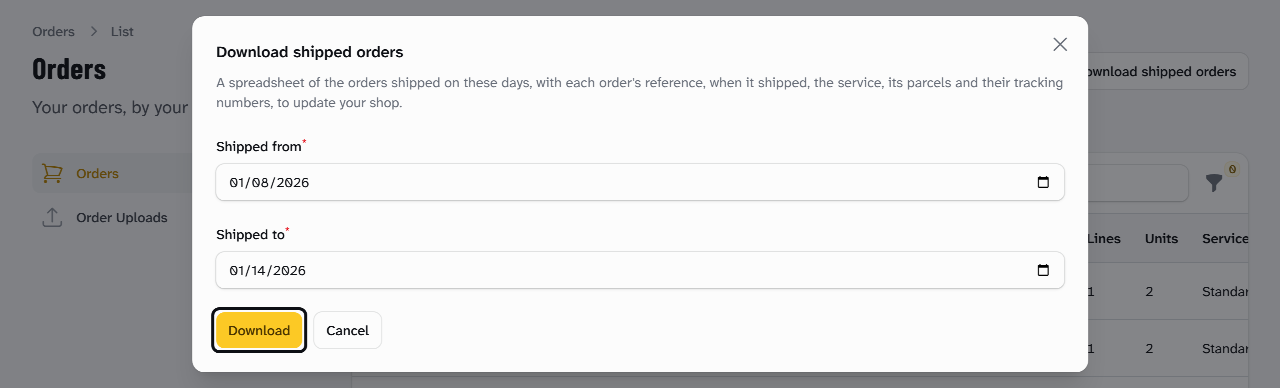
In Shipped from and Shipped to, choose the first and last day. They start at the last 7 days, up to today.
-
Select Download. Your browser saves the Shipped Orders Download as a CSV file, such as
shipped-orders-hebden-botanicals-ltd-2026-01-08-to-2026-01-14.csv.
What the file holds
One row for each order shipped on those days, earliest first:
| Column | What it holds |
|---|---|
| Client Order Reference | Your own reference for the order, such as HB-W-10234 |
| Shipped | When the carrier collected it, in UK time, such as 2026-01-13 17:35 |
| Service | The carrier's service, such as Royal Mail Tracked 48 |
| Parcels | How many parcels it went in |
| Tracking numbers | Each parcel's tracking number, such as DM296366195GB, separated by commas |
A day is a UK day. The file holds only orders that have shipped, never your 3PL's own numbers for them.
What happens next
Load the file into your shop to mark the orders sent and give each recipient their tracking numbers. To track one order, open it under Orders: see Read the order's page.
Questions about your stock or deliveries go to your account manager.
Still stuck? Contact your 3PL's account manager.