
Print labels, use Held Parcels and make a Manual Label
- How-to
- Dispatch
- Who can do this: Admin, Warehouse Manager, Floor Supervisor, Warehouse Operative
- Checked on 2 November 2026
Stick and scan each carrier label at the Pack Station, reprint a damaged one, put parcels that can't go out on Held Parcels, and cancel or record labels.
In short
When an order is Packed, its labels print at its Pack Station: stick each on its parcel and scan it. Take the parcels where the Goes To sign says, which is Held Parcels when they can't go out yet.
Before you start
You need to be a Warehouse Operative, a Floor Supervisor, a Warehouse Manager or an Admin. Cancelling labels and recording a Manual Label are for a Floor Supervisor or above.
Your team needs a connected Carrier Account for labels to print: see Connect your Royal Mail account. Each Pack Station's set-up says which printer and paper its labels use: see Set up a station.
Steps
Stick and scan the labels
-
Pack the order: see Pack an order at the Pack Station. When its last parcel closes, the order is Packed. Its Carrier Labels print on the station's carrier label printer, or in the screen's browser. If the carrier is still being asked, the screen says to wait, and the labels print once they come.
-
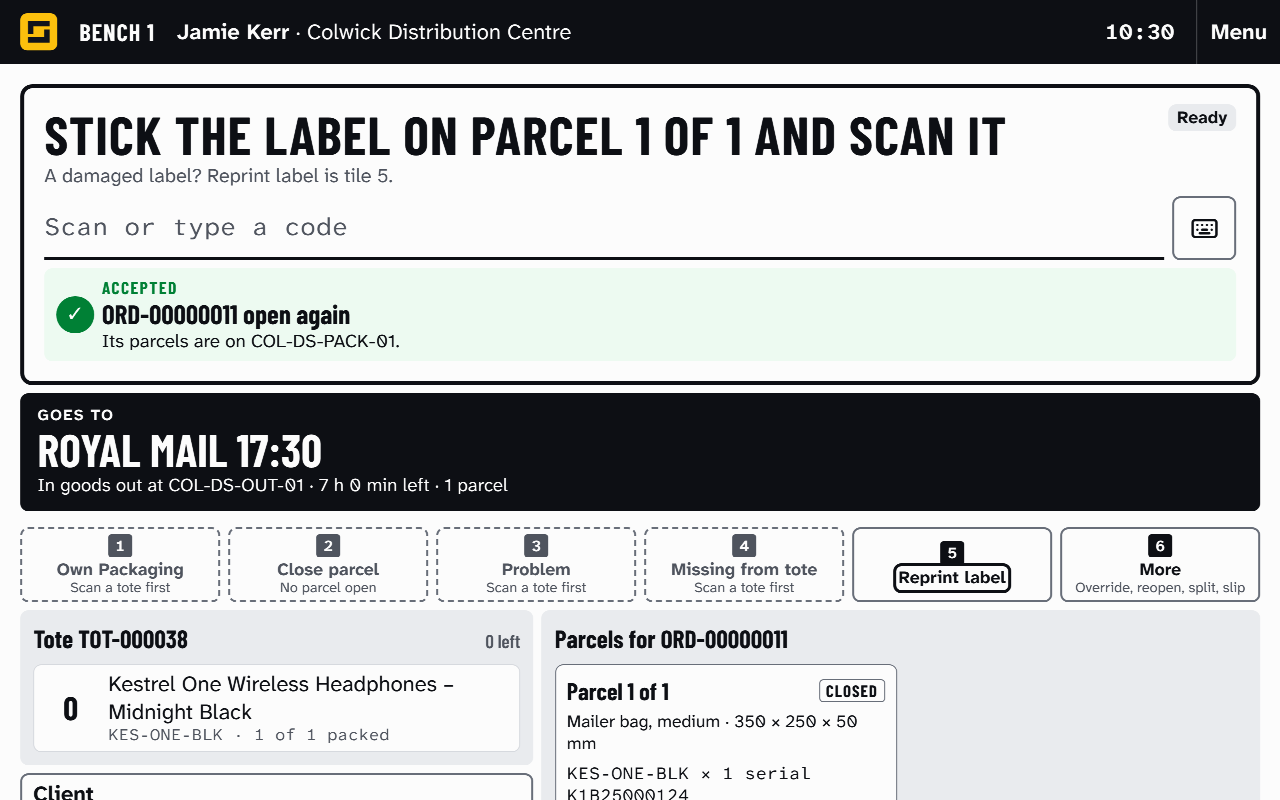
Stick each label on its parcel and scan it:
Label on parcel 1 of 2 · 1 label left to scan.
The parcels column lists each tracking number as To scan or On its parcel.
-
When every label is on, take the parcels to the cage the Goes To sign names. It shows the cage, its goods-out spot and the time left.
-
Scan the cage's goods-out Location, such as
COL-DS-OUT-01. The bench is clear for the next tote.
A goods-out Location for another collection is refused, and the screen names the right one.
If a label print fails, the screen says why. Select Try again, Print in browser or Later. The parcels stay closed either way.
Reprint a damaged label
- Select 5 Reprint label. With several parcels, choose which parcel's label is damaged. It prints again with the same tracking number, and nothing is cancelled.
- Stick it over the damaged one and scan it.
Put parcels on Held Parcels
When the order can't go out yet, the Goes To sign says Held Parcels and why. The order may be held, its client On Hold, Waiting for Label, or its labels cancelled.
- Put the parcels on the Held Parcels shelf, such as
COL-DS-HELD-01. - Scan the shelf's code. A packing slip prints: put it on top of the parcels.
When the hold is lifted, or the carrier answers, bring the parcels to any Pack Station. Scan the order's Transaction Number from the packing slip, such as ORD-00000010. Its labels are booked and print there: carry on from step 2 of Stick and scan the labels.
Cancel labels
Labels are cancelled only for a reopened labelled parcel, an Address Correction, a Service Change or a cancelled order. A missed collection, a no-show or a hold never cancels a label.
-
Floor Supervisor or above: go to Orders › Orders and open the order.
-
Select Cancel labels. Choose Why, add a Note if you like, and select Submit:
Labels cancelled
-
Bring the parcels to a Pack Station and scan the order's Transaction Number. The old labels are listed on the bench. Peel each one off and scan it:
Every old label is off. The new labels print when the order is ready.
-
Put the parcels on Held Parcels and scan the shelf. The new labels print once the change is made.
The parcels don't move on until every old label is scanned off. See Label Cancellation.
Record a Manual Label
When Stockist can't reach the carrier, the Goes To sign says:
Waiting for a label: Stockist is not connected to Royal Mail yet. Labels print at any pack station once the carrier answers.
The words after "Waiting for a label" are what the carrier said. Put the parcels on Held Parcels first. If the carrier stays down, a Floor Supervisor can make the labels by hand.
-
Floor Supervisor or above: make each parcel's label on the carrier's own website.
-
Go to Orders › Orders, open the order and select Record Manual Label.
-
Scan or type each parcel's tracking number, parcel 1 first, and select Submit:
Manual Label recorded
-
At a Pack Station, scan the order's Transaction Number, then scan each Manual Label on its parcel.
A Manual Label is never booked again by Stockist. To cancel one, cancel it on the carrier's website too.
What happens next
Parcels in the cage go out at the collection's Close-Out: see Load and close out a collection.
Each label is part of the order's Shipment. Clients see the tracking numbers once the order is Shipped.
Still stuck? Email [email protected]