
Pack stock into a container, and unpack it
- How-to
- Stock Containers
- Who can do this: Admin, Warehouse Manager, Floor Supervisor, Warehouse Operative
- Checked on 30 October 2026
Put loose stock into a pallet or tote so it moves with it, and take it out again into a location, on the Rapid Scanner or at a desk.
In short
On the Rapid Scanner, scan the location, select Pack loose stock, scan each unit (or type how many), then scan the container. To take stock off a pallet or out of a tote, scan the container and select Unpack or Unpack all here.
Before you start
You need to be a Warehouse Operative, a Floor Supervisor, a Warehouse Manager or an Admin. If you don't see Pack loose stock or Unpack, ask a Warehouse Manager.
The container must be active and open: a container closed at the dock takes no more stock. On the scanner you pack as many units as you scan or type.
Steps
Pack loose stock into a container
-
Open the Rapid Scanner from the top bar (F2 at a desk). Scan the location where the loose stock is, such as
COL-PF-P03B3. -
Select Pack loose stock. With one product loose there, the instruction says Scan each one. With several, it says Scan the product first.
-
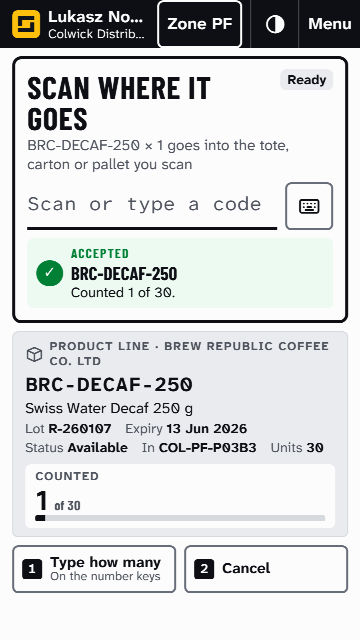
Scan the product once for each unit that goes in. The card counts them, such as "Counted 1 of 30", and the instruction says Scan where it goes.
-
If the labels won't scan, select Type how many and enter the number instead. It is recorded as a Keyed Quantity.
-
Scan the container's barcode, such as
TOT-000030. The result line says what was packed, and the stock moves to wherever the container stands.
From a product's card, Repack into a container does the same for that one line. Select Undo beside the result to put it back, before your next scan.
Unpack stock into a location
- On the Rapid Scanner, scan the container, such as
TOT-000030. - To unpack everything into another location, select Unpack, then scan the location. The stock is loose there.
- To unpack everything where the container stands, select Unpack all here.
- To unpack one product, scan it, choose its line in the container, then select Unpack to Location and scan where it goes.
- To move everything into another container instead, select Repack and scan that container.
Quarantined stock can only go to a Quarantine Location: the scanner refuses any other and says why. Select Undo beside the result to put it back, before your next scan.
At a desk
- Pack: go to Stock Containers › Containers, select the arrow beside the container, then Pack Items. Any loose stock is offered, and it moves to wherever the container stands.
- Pack one line: go to Inventory › Inventory Items, select the arrow beside it, then Pack into Container. Choose the Stock Container and select Pack.
- Unpack: in Inventory › Inventory Items, select the arrow beside stock in a container, then Unpack to Location.
At a desk, Floor Supervisors, Warehouse Managers and Admins also see Override the weight limit. Turn it on only to go over a weight limit on purpose: it lifts no other check.
What happens next
Containerized Inventory moves with its container, so moving the container moves it all. Inventory › Inventory Items and the Rapid Scanner show it at the container's location.
Still stuck? Email [email protected]