
Count stock and correct a quantity
- How-to
- Inventory
- Who can do this: Admin, Warehouse Manager, Floor Supervisor, Warehouse Operative
- Checked on 30 October 2026
Correct a line of stock to what you counted, count a whole location blind on the Rapid Scanner, and confirm a count that differs from the books.
In short
To correct one line of stock, go to Inventory › Inventory Items at a desk, select Adjust Stock beside it and enter what you counted with a reason. To count a whole location, select Location Counts on the Rapid Scanner and scan everything there.
Before you start
You need to be a Warehouse Operative, a Floor Supervisor, a Warehouse Manager or an Admin. Raising a count by hand and confirming a count that differs from the books need a Floor Supervisor or above.
Adjust Stock corrects a Batch Pool. A unit with a serial number is always one: if it's missing, change its status to Not Found instead.
Steps
Correct one line of stock
Adjust Stock is a desk task: the Rapid Scanner doesn't offer it. On the floor, count the location instead.
-
Go to Inventory › Inventory Items and search for the SKU.
-
Select the arrow beside the line of stock, then Adjust Stock.
-
Under Quantity on the Books, enter the Counted Quantity and a Reason, such as "Counted 38 boxes, 2 missing from the front of the shelf".
-
Select Record Count. Stockist confirms the change:
Quantity corrected from 40 to 38
A count of 0 takes the line off the books as Not Found. Each Quantity Correction shows under Count History when you select View beside the line in Inventory › Inventory Items.
Count a location
A location gets a count after a short pick, or when a Floor Supervisor raises one. The count is blind: the scanner hides what the books say is there. A container standing there says "Being counted: contents hidden", and it can't be moved, repacked or unpacked until the count is in.
-
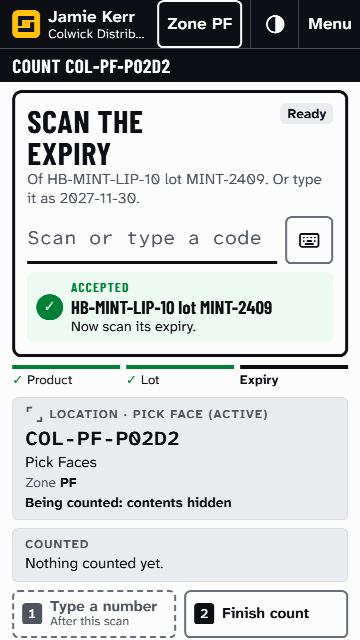
On the Rapid Scanner's home screen, select Location Counts, or use the 2 key. Stockist starts the next count waiting at your warehouse, your Working Location's own first. The header names it, such as "Count COL-PF-P02D2".
-
Scan each thing there, one at a time. Each scan counts one. For a product with lots, it then asks Scan the lot, and for a new lot Scan the expiry. For a product with serial numbers, scan each unit's serial.
-
To count many of one product, scan one, then select Type a number and enter how many are there in all. The line is then a Manual Count.
-
If something has no barcode you can scan, select More › Can't scan and enter how many. They're noted on the count for a Floor Supervisor.
-
Select Finish count, then Finish count again. Anything you didn't count counts as not there.
If the count matches the books, the result says "Count matches" and the location is ready for use again. If not, it says "Sent to a Floor Supervisor", who checks it before the books change. More › Stop counting throws away what you counted, and the count stays waiting.
Raise a count by hand
Floor Supervisor or above: scan the location on the Rapid Scanner and select Raise a Location Count. The result says "Location Count raised". Until it is counted, nothing new is reserved from the location or put away into it.
Confirm a count that differs
- Floor Supervisor or above: go to Orders › Pick Board. Location Counts lists each count waiting for you.
- Select Confirm count to see the books beside the count, then Confirm count again. Or select Count again to have it counted blind once more.
Confirming corrects the books: units not found go Not Found, and units found over the books become Available. Stock that isn't on the books at all is never added. Choose the Quarantine Location you took it to, and Warehouse Managers are told.
What happens next
Corrected quantities show at once in the Rapid Scanner and Inventory › Inventory Items. Orders can reserve stock found over the books straight away.
Still stuck? Email [email protected]