
Find stock with the Rapid Scanner
- How-to
- Inventory
- Who can do this: Admin, Warehouse Manager, Floor Supervisor, Warehouse Operative, Account Manager
- Checked on 30 October 2026
Scan a location, container, product or Transaction Number to see what it is, what it holds and where its stock is, then pick a numbered task for it.
In short
Open the Rapid Scanner from the top bar (F2 at a desk) and scan anything: a location, container, product or Transaction Number. It shows what you scanned, what it holds and numbered tasks, which you pick by number or by selecting them.
Before you start
You need to be a Warehouse Operative, a Floor Supervisor, a Warehouse Manager, an Admin or an Account Manager. An Account Manager can look things up but sees no tasks. If you don't see the scanner button in the top bar, ask an Admin.
On a handheld the Rapid Scanner fills the screen. At a desk it opens as a panel down the right of the page you're on. The Rapid Scanner screen explains each part of the screen.
Steps
Look up a location, container or product
-
Select Open the Rapid Scanner in the top bar, or use F2 at a desk. The scanner opens on Scan anything, with the cursor in the scan field.
-
Scan a location label, such as
COL-PF-P03B3. Its card shows what it holds, and it becomes your Working Location: the zone chip in the header changes to its zone.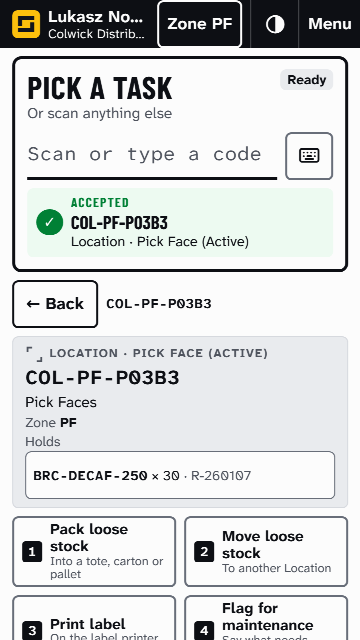
-
Scan a container's barcode, such as
PAL-000036, to see where it is and what is packed in it. -
Scan a product's SKU or barcode, such as
BRC-DECAF-250. If it is in more than one place, Choose where it is lists each place with a number: select one, or use its number key.
The short code on a location's label, such as P03B3, works too: Stockist reads it in your Working Location's zone.
Pick a task
Each card offers numbered tiles. Select a tile, or use its number key while the scan field is empty.
- A location: Pack loose stock, Move loose stock, Print label and Flag for maintenance. Floor Supervisors and above also see Raise a Location Count.
- A container: Move, Repack, Unpack, Unpack all here and Print label.
- A product in one place: Repack into a container, Move to a Location (or Unpack to a Location when it is in a container), Mark damaged, and a tile that opens its container or location.
A task that needs a place says Scan where it goes: scan the location or container, and the result shows on the card. Select Cancel to back out.
Look up an order, list or parcel
Scan a Transaction Number, such as ORD-00000001, or a parcel label. A summary card shows its status, where it is and what happens next. At a desk the card also offers Open page, which opens its page on the office screens.
See what you have done
On the home screen, select This session, or use the 4 key. It lists your work since you signed in, newest first: select a line to open what it names. This session lists what it shows.
What happens next
Your Working Location stays set as you move between pages, until you scan another location or select Menu › Clear Working Location. Select Menu › Home to go back to Scan anything.
Change Status and Adjust Stock are not on the scanner: do them at a desk from Inventory › Inventory Items. On the floor, use Mark damaged or a Location Count instead.
If the scanner says Not found, see The Rapid Scanner says nothing matches a code.
Still stuck? Email [email protected]