
Resolve a red tag
- How-to
- Orders
- Who can do this: Admin, Warehouse Manager, Floor Supervisor
- Checked on 28 October 2026
Decide what happens to an order red tagged on the floor, from carrying on to splitting it or sending its stock back, and change how long it is held.
In short
Open the red tagged order under Orders and select Resolve red tag. Choose a resolution, such as Carry On or Split, and select Submit. Only a Warehouse Manager or an Admin can choose Return and Cancel.
Before you start
You need to be a Floor Supervisor, a Warehouse Manager or an Admin. If you don't see Resolve red tag on a red tagged order, ask a Warehouse Manager.
A Red Tag is a problem with an order found on the floor. A picker or packer raises one with Problem and a Red Tag Reason: see Something is wrong with an order and Something else is wrong. Stockist raises one itself, Short at picking, when a short pick finds no other stock.
The order is held, and its picked stock waits in the Red Tag Location, still reserved for it. Talk to the client or their Account Manager first if the resolution needs their say.
Decide first
Each Red Tag Resolution ends the red tag, except Hold, and can't be undone.
| Resolution | What happens |
|---|---|
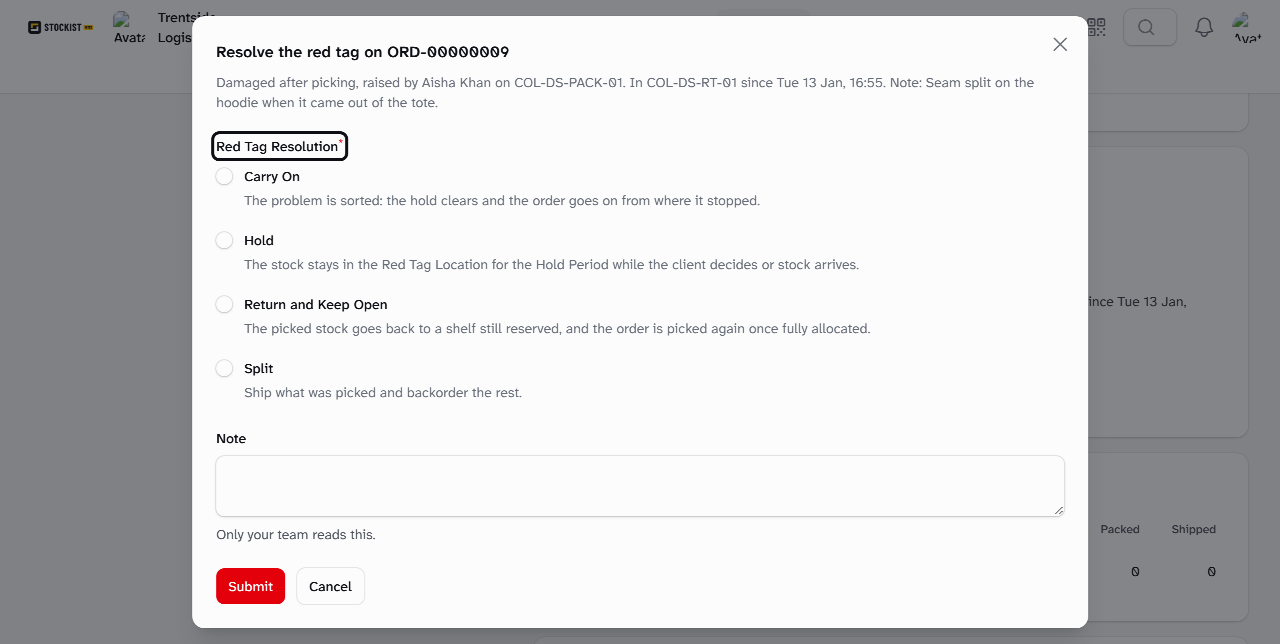
| Carry On | The problem is sorted. The hold clears and the order goes on from where it stopped. |
| Hold | The stock stays in the Red Tag Location for the Hold Period, while the client decides or stock arrives. |
| Return and Keep Open | The picked stock goes back to a shelf, still reserved. The order is picked again once it is fully allocated. |
| Split | What was picked ships, and the rest becomes a Backorder. |
| Return and Cancel | The picked stock goes back to a shelf as Available, and the order is cancelled. Warehouse Manager or Admin only. |
Steps
Resolve the red tag
-
Go to Orders. Floor Supervisors find red tags under My holds. Anyone can enter the order in Find an order, such as
#NT-50246. -
Read the red tag under Holds: its reason, who raised it and where, and any note.
-
Select Resolve red tag. The form says where the stock waits, since when, and when any Hold Period ends.
-
Choose the Red Tag Resolution.
-
If you chose Split and the client doesn't allow partial shipments, record who agreed. Enter Who at the client agreed and How they agreed (phone, email).
-
Optionally, enter a Note. Only your team reads it.
-
Select Submit. Stockist shows the resolution, such as "Red tag resolved: Return and Keep Open".
If a resolution doesn't fit the order, Stockist says what to choose instead:
Every unit of ORD-00000009 was picked, so there is no rest to backorder: Carry On instead.
A return is refused while the order has an open parcel at the bench. Send its stock to the Red Tag Location from the bench first.
Change the Hold Period
A held red tag waits for the warehouse's Red Tag Hold Period, counted in working days.
- Select Change Hold Period.
- Enter the Hold Period (working days), from 1 to 20, and a Reason.
- Select Submit. Stockist shows "Hold Period now 3 working days".
When the Hold Period ends, nothing happens to the order on its own. It shows as overdue, and the Floor Supervisors and the client's Account Manager get a reminder in the bell.
What happens next
- Carry On: a wholly picked order is ready for packing from where its stock waits. Any picks left go on a follow-up list.
- Return and Keep Open or Return and Cancel: someone returns the stock from the Rapid Scanner: see Return stock to a shelf. Any closed parcels are emptied first, and their labels are cancelled.
- Split: the order ships what was picked. The Backorder keeps the same Client Order Reference and Must-Ship-By.
The client reads plain words, such as "Held: damaged after picking." They never see locations, notes or staff names.
Still stuck? Email [email protected]