
Pick with Next List
- How-to
- Orders
- Who can do this: Admin, Warehouse Manager, Floor Supervisor, Warehouse Operative
- Checked on 30 October 2026
Take your next Pick List on the Rapid Scanner, pick it one unit at a time into totes, and handle short picks, problems, parking and the drop at packing.
In short
On the Rapid Scanner, select Next List, scan a location and say how many totes are on your cart. Then follow one instruction at a time: the location, each unit, its tote, and the drop location.
Before you start
You need to be a Warehouse Operative, a Floor Supervisor, a Warehouse Manager or an Admin. If you don't see the scanner button in the top bar, ask your Floor Supervisor.
Have a cart with empty totes. A tote is a container whose type is a Pick Container.
Nobody hands out lists. Next List builds yours from the most urgent orders at your warehouse when you ask. Each order on it is then Released and can no longer be edited.
Steps
Take a list
-
Select Open the Rapid Scanner in the top bar, or use F2 at a desk. The Rapid Scanner opens on Scan anything.
-
Select Next List, or use the 1 key. The tile says how many orders are waiting.
-
Scan any location in the warehouse you're picking in, such as
COL-PF-P01B3. -
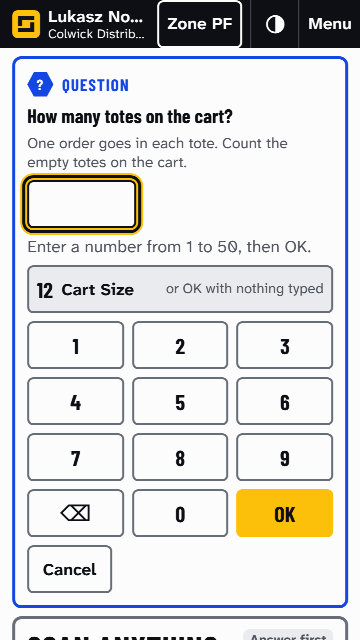
Stockist asks How many totes on the cart? Enter the number of empty totes, then select OK. Select OK with nothing typed to take your warehouse's Cart Size.
-
The list takes over the screen. The header names it and your stop, such as "Picking PCK-COL-000006 · 1 of 4".
If nothing is due, the scanner says "No list taken" and why, and stays on Scan anything.
Pick each unit
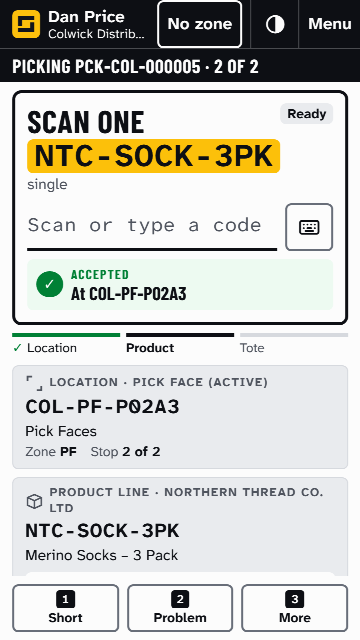
The instruction card shows one step at a time, in walking order. You hold one unit at a time, so 3 units are 3 rounds of scans. You never type a quantity.
-
Go to: walk to the location in the yellow box and scan its label.
-
Scan one: take one unit and scan the product.
-
If it says Scan the lot, scan the lot printed on it, once for the pick. If it says Scan the serial, scan the unit's serial.
-
Put it in: put the unit into the tote shown and scan the tote. The first time for an order it says Scan an empty tote: the tote you scan becomes that order's.
-
If a tote is full, scan another empty one.
-
Repeat until the scanner says Scan the drop Location.
A wrong scan is refused at once on the result line and changes nothing, such as Wrong Location. A different serial of the same product from the same location is accepted, and Stockist moves the reservation to it. Scanning a serial you've already put into the tote says Already picked, and nothing is added.
To see the whole list, with what is picked and each order's tote, select Menu, then the list in full, such as PCK-COL-000006 in full. Select Back to picking to carry on.
Finish the list
- Take the cart to the pack benches.
- Scan the drop location you leave it at: a Pack Station or a staging location.
If an order on your list is held, the scanner first asks you to leave its totes at the Red Tag Location, such as COL-DS-RT-01, and scan it. Then take the cart to packing.
A pick is short
-
Pick what you can, scanning as usual.
-
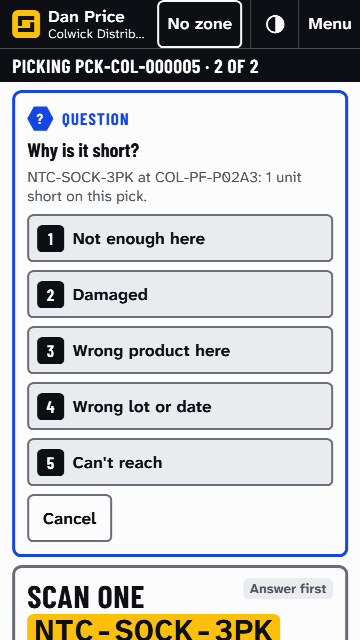
Select Short, or use the 1 key. Stockist asks Why is it short?, with how many units are short.
-
Select a reason, or use its number key.
-
For Damaged, enter how many are damaged on the number keys and select OK. Leave them where they are.
-
The next step shows at once, and the result line says where any re-pick went.
Never search for the stock yourself. What Stockist does next is in Short picks and Location Counts.
Something is wrong with an order
- Select Problem, or use the 2 key. If the pick is for several orders, select the order with the problem.
- Select the Red Tag Reason, such as Damaged after picking.
- For Other, enter what's wrong and select OK. Only your team reads it.
- The order is held as Red Tag and its picks are skipped.
On a Cluster List, the scanner asks you to leave its tote at the Red Tag Location at the finish. A Floor Supervisor then decides what happens: see Resolve a red tag.
Park the list and carry on
- Put any unit in your hand into its tote first.
- Select More, then Park. The instruction says Scan where the cart is left.
- Scan the location where you leave the cart. The list is Parked there.
Anyone with no list of their own carries on by scanning one of its totes on the Rapid Scanner. If no tote was used yet, they scan its PCK number.
More also offers Supervisor Call and Lookup, which looks something up without leaving the list.
What happens next
Each order is Picked as soon as its last unit is in a tote. Its totes go to packing once you have scanned the location you left the cart at: see Pack an order at the Pack Station.
If an order on your list is put on hold, your next scan says so, and you skip its picks. On a Cluster List its tote goes to the Red Tag Location at the finish. On a Batch List the bench catches its unit.
To call a Floor Supervisor to where you are, select More › Supervisor Call: see Raise a Supervisor Call. Orders › Pick Lists lists every Pick List, with who picked it and what happened at each stop.
Still stuck? Email [email protected]