
Return stock to a shelf
- How-to
- Orders
- Who can do this: Admin, Warehouse Manager, Floor Supervisor, Warehouse Operative
- Checked on 30 October 2026
Put picked stock back on a shelf from the Rapid Scanner after a red tag, a cancellation or a QA fault, one unit at a time.
In short
On the Rapid Scanner, select Return to Stock. Scan the tote, then each unit and the location you put it in, until every unit is back.
Before you start
You need to be a Warehouse Operative, a Floor Supervisor, a Warehouse Manager or an Admin. If the Return to Stock tile says none are waiting, ask your Floor Supervisor.
A Return to Stock task is raised when picked stock must go back to a shelf:
- a red tag resolved with Return and Keep Open or Return and Cancel: see Resolve a red tag;
- an order cancelled after it was picked: see Cancel a released order;
- a wrong or extra unit at a QA check or at the bench.
The stock usually waits in the Red Tag Location, such as COL-DS-RT-01, or at the bench.
Steps
-
Select Open the Rapid Scanner in the top bar, or use F2 at a desk. The Rapid Scanner opens on Scan anything.
-
Select Return to Stock, or use the 3 key. Stockist starts the next task at your warehouse, one with a tote at your Working Location first. The header names the order, such as "Returning ORD-00000009".
-
Scan tote: scan the tote named, such as
TOT-000039. Scanning a tote of another task switches to that task. When the stock waits loose, such as at the Red Tag Location, there's no tote to scan: go on to the next step. -
Scan one: take a unit out and scan it. If it says Scan its lot or serial, scan the one printed on the unit in your hand.
-
Put it in shows where the unit was picked from, such as
COL-PF-P01D2. Put it there and scan the location, or put it in any other location it fits and scan that.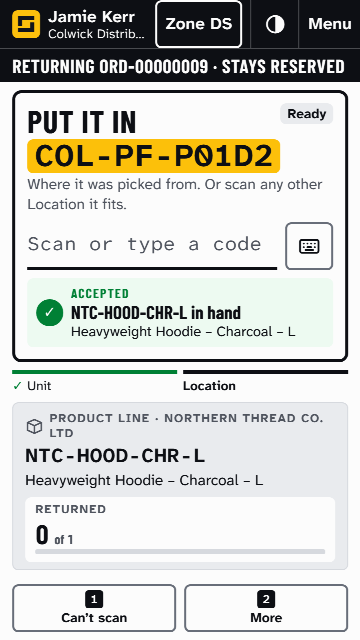
-
The result line counts them, such as "Returned 2 of 5". Repeat for each unit. After the last one it says so, such as "Every unit for ORD-00000009 is back on a shelf."
If a label won't scan, select Can't scan and enter the code the step asks for, as printed. To stop part way, select More, then Stop returning. What you returned stays returned, and the rest stays on the task for anyone to carry on.
If a location can't take the unit, the result line says why. Scan another location. It must be at the order's warehouse, take putaway, have room, and not be waiting for a count.
What happens next
Returned stock keeps its Received Day, so it keeps its place in the rotation.
Stays reserved on the task means the order kept the stock, after Return and Keep Open. It is picked again once the order is fully allocated. Available again means the stock is free. Waiting orders top up from it at once: see Short orders top up.
A tote is free again once it is empty.
Still stuck? Email [email protected]