
Edit, hold or cancel an order
- How-to
- Orders
- Who can do this: Admin, Warehouse Manager, Account Manager
- Checked on 28 October 2026
Change an order before it is released, hold it with a message for the client, or cancel it before or after release.
In short
Find the order under Orders and select Edit order, Hold order or Cancel order. Until an order is Released you can change or cancel it outright. After that, only a Warehouse Manager or an Admin can cancel it.
Before you start
Before release, an Account Manager, a Warehouse Manager or an Admin can edit, hold or cancel an order. Only a Warehouse Manager or an Admin can cancel a released order, or decide a client's request to cancel. Finance Managers and floor staff see the buttons locked, naming who can use them.
Your clients' Client Users and Client Account Administrators can edit, pause and cancel their own orders before release. From Released on, they can only ask you to hold or cancel.
Steps
Find the order
-
Go to Orders.
-
In the search box, enter the order's
ORDnumber or Client Order Reference, then select the order. Its buttons show under its delivery details.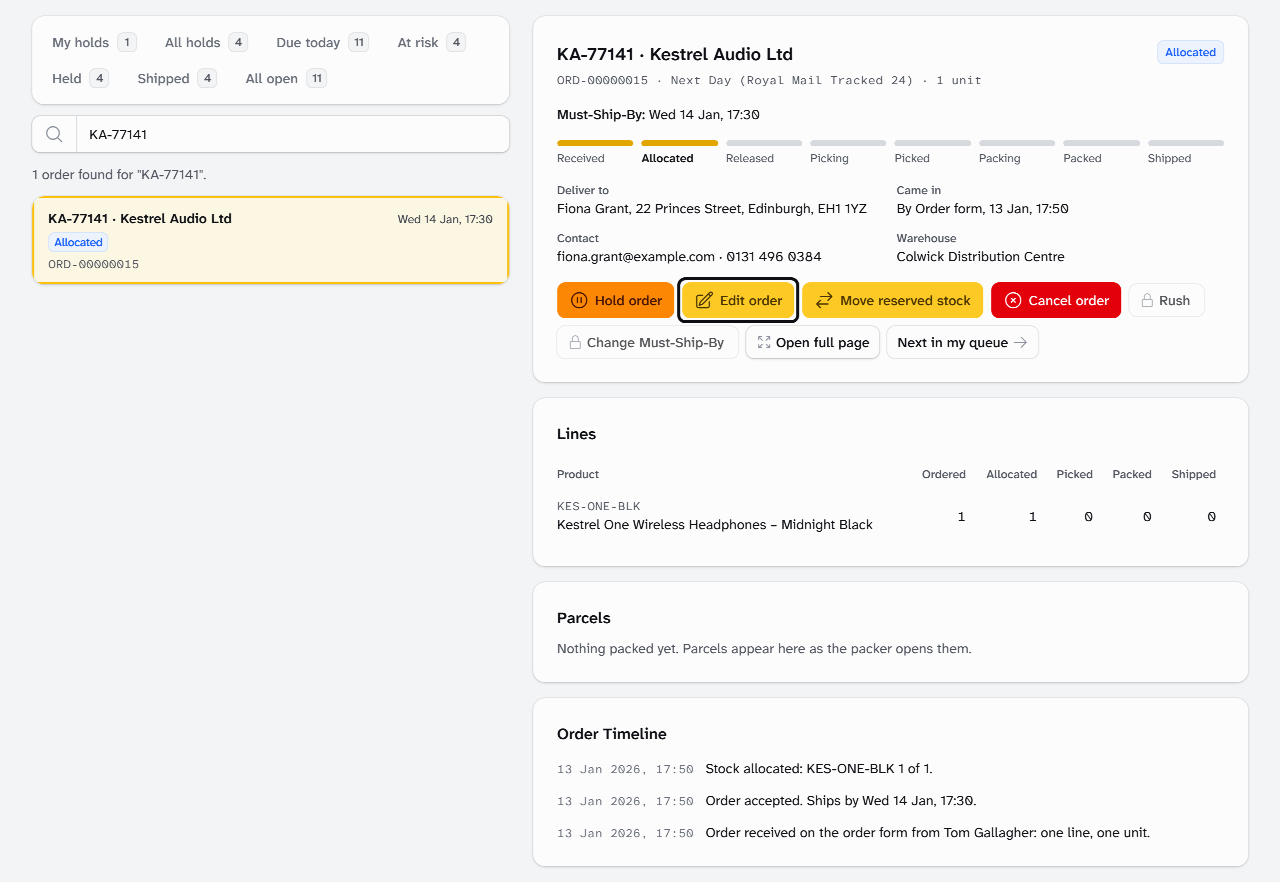
Edit an order before release
- Select Edit order.
- Change the Client Order Reference, Service Level, delivery address, contact or lines. To take a line off, select its delete button.
- Select Submit. Stockist shows "Order saved".
Every check runs again. An edit that would refuse a new order isn't saved, and Stockist lists every reason:
This edit was not saved. [reasons]
Hold an order
-
Select Hold order.
-
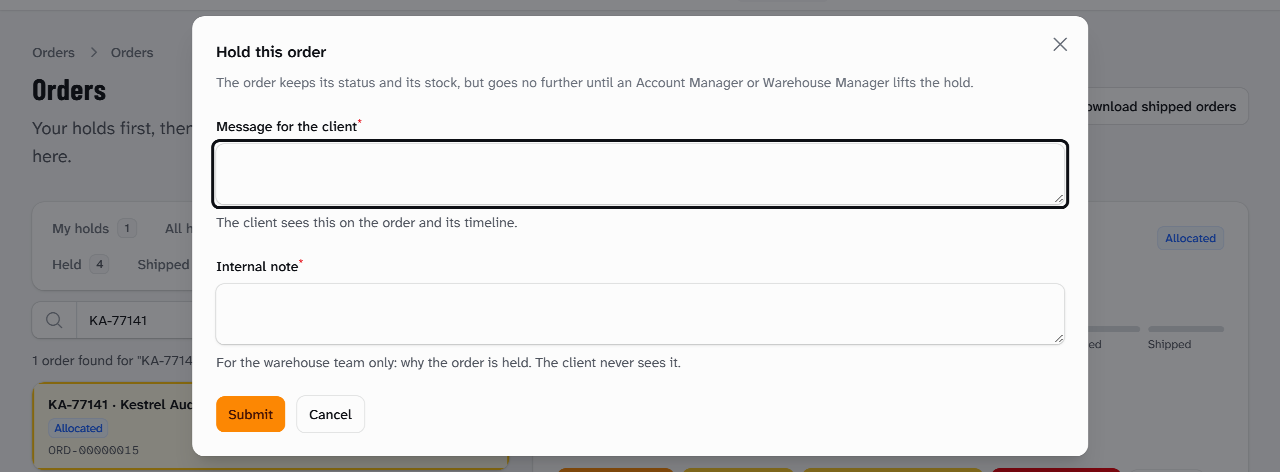
Enter a Message for the client, which they see on the order, and an Internal note for your team. Both are needed.
-
Select Submit. Stockist shows "Order held". The order keeps its status and stock, but goes no further.
-
When it can go on, select Lift staff hold, add an internal note if you like, and select Submit.
If the client paused the order themselves, select Resume order to carry it on for them.
Cancel an order before release
- Select Cancel order.
- Optionally, enter a Reason (optional). The client reads it on the Order Timeline.
- Select Cancel the order. Stockist shows "Order cancelled". This can't be undone.
Cancel a released order
- Warehouse Manager or Admin only: on a released order, select Cancel order.
- Enter a Reason, which the client reads.
- Under Who caused it?, choose Client, Warehouse, Carrier or Not yet known. It is for billing, and the client never sees it.
- Select Cancel the order. Stockist shows "Order cancelled".
A red-tagged order is cancelled by resolving its Red Tag with Return and Cancel instead.
Decide a client's request to cancel
A Cancellation Request holds the order as Cancellation requested, with the client's reason under Request from the client.
- Warehouse Manager or Admin only: select Approve cancellation, then Approve and cancel. The order is cancelled as above.
- Or select Decline cancellation, enter a Reason for the client and select Submit. The order carries on from where it stopped.
What happens next
After an edit, stock follows the lines. Added units are reserved at once, and units no longer needed go back to Available. The Must-Ship-By stays where it was.
An order held at intake that the edit fixes is accepted at once.
A Request to Hold from the client holds a released order as Held by staff, which you lift as above.
Cancelling before release gives back all the order's reserved stock. A Cancellation After Release empties its parcels and puts picked units on a Return to Stock task. A Packed order's labels are cancelled, so scan each old label off its box.
Each change goes on the Order Timeline. The client reads each edit, hold and cancellation, but never your internal notes. Your staff show as "Your warehouse team".
Still stuck? Email [email protected]