
Rush an order or change its Must-Ship-By
- How-to
- Orders
- Who can do this: Admin, Warehouse Manager
- Checked on 28 October 2026
Send an order on the next collection it can make, first in line, or move it to another collection, with a reason the client reads.
In short
Find the order under Orders and select Rush to send it on the next collection it can still make, first in line. Select Change Must-Ship-By to choose another collection. Either needs a reason, and the Committed Ship-By never moves.
Before you start
You need to be a Warehouse Manager or an Admin. Others see Rush and Change Must-Ship-By locked, marked "Warehouse Manager only". A client who wants an order sooner or later asks their Account Manager, who asks you.
The order must be accepted and not yet Shipped. A held order has no Must-Ship-By until its holds clear: see Why an order is held, and how to fix it.
Steps
Rush an order
-
Go to Orders. In Find an order, enter the
ORDnumber or Client Order Reference, such asKA-77141, and select the order. -
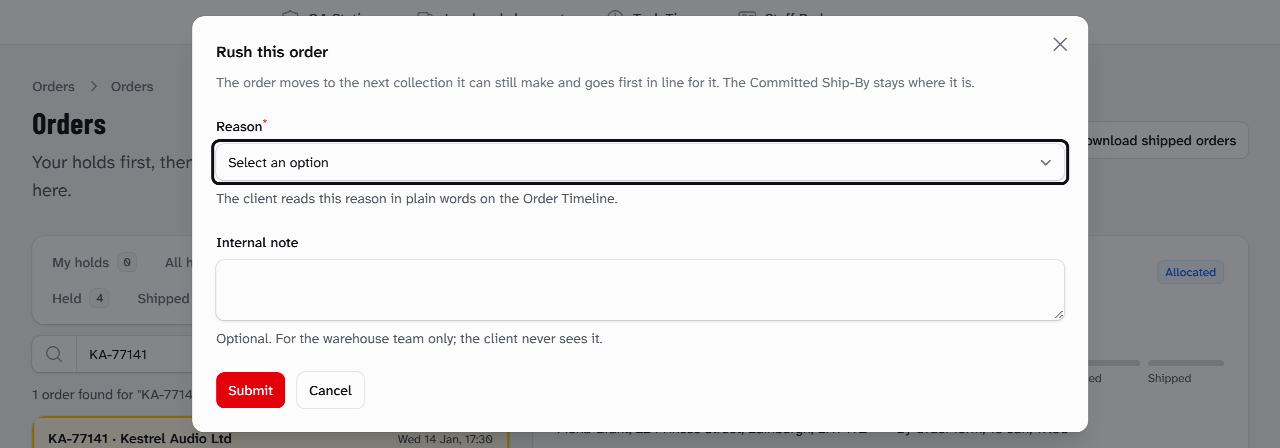
Select Rush.
-
Under Reason, choose why, such as Client asked. The client reads it on the Order Timeline.
-
Optionally, enter an Internal note for your team.
-
Select Submit. Stockist shows "Order rushed".
The order moves to the next collection whose Latest Same-Day Acceptance is still to come, unless it is already on a sooner one. It goes first in line for that collection, and the floor sees it marked Rushed.
Change the Must-Ship-By
- On the order, select Change Must-Ship-By.
- Under Collection, choose a future collection of the order's Carrier Service, such as Fri 16 Jan, 17:30.
- Choose a Reason and, optionally, enter an Internal note.
- Select Submit. Stockist shows "Must-Ship-By changed".
The order shows its new Must-Ship-By, marked Must-Ship-By Override, with its Committed Ship-By below. A change replaces a rush, and a rush replaces a change.
Go back to the Committed Ship-By
- On the order, select Remove rush or Remove override.
- Optionally, enter an Internal note, then select Submit. Stockist shows "The order is back on its Committed Ship-By".
Move orders off the timetable
When a day is closed or a collection is marked missing, orders already due on it keep their Must-Ship-By. They are listed under Orders off the timetable on the warehouse's calendar page, for you to move together.
- Go to Warehouses › Warehouses. In the warehouse's row, select Actions, then Calendar and collections.
- Check the orders under Orders off the timetable, then select Move these orders.
- In Ship on, choose the day. Each order moves to its own Carrier Service's last collection that day.
- Choose a Reason, such as Warehouse closed, and optionally an Internal note.
- Select Submit. Stockist says how many orders moved, such as "11 orders moved".
If any order's Carrier Service has no collection still to come that day, nothing moves:
Nothing moved: these orders' Carrier Services have no collection still to come on [day]: [orders].
What happens next
The Committed Ship-By stays where it was, so on-time dispatch is still measured against what the rules gave. An order moved to another day because the warehouse closed misses its Committed Ship-By, with the closure as its cause.
The client reads each change on the order and its Order Timeline, with the reason in plain words, never your note or your name:
| Reason | The client reads |
|---|---|
| Client asked | because you asked for it |
| Replacement for an earlier order | because it replaces an earlier order |
| Delivery complaint | because of a delivery complaint |
| Agreed later date | because a later date was agreed with you |
| Warehouse closed | because the warehouse is closed when it was due to ship |
| Other | for a reason your Account Manager can explain |
If a delay the client caused ends later, the Must-Ship-By is worked out again, and a rushed order is rushed again: see How the Must-Ship-By is worked out.
Still stuck? Email [email protected]