
Enter an order
- How-to
- Orders
- Who can do this: Admin, Warehouse Manager, Account Manager
- Checked on 28 October 2026
Enter a client's order by hand on the order form, read the warnings as you type, and send it to be taken in, held or refused.
In short
Go to Orders, select Enter an order, choose the client and fill in the order. Then select Send order. Warnings show as you type and never stop you sending.
Before you start
You need to be an Account Manager, a Warehouse Manager or an Admin. If you don't see Enter an order, ask the client's Account Manager.
Have the client's own reference for the order, and the recipient's name, email, phone and address. For each product, have its SKU or one of its SKU Aliases, in any capitals, and the quantity.
Your clients' Client Users and Client Account Administrators can enter their own orders the same way, without choosing a client.
Steps
-
Go to Orders and select Enter an order.
-
In Client, choose the client, such as Northern Thread Co. Ltd (NTC).
-
Enter the Client Order Reference, the client's own number for the order, such as
#NT-50260. If the client used it before, a box shows to tick only if it really is a new order.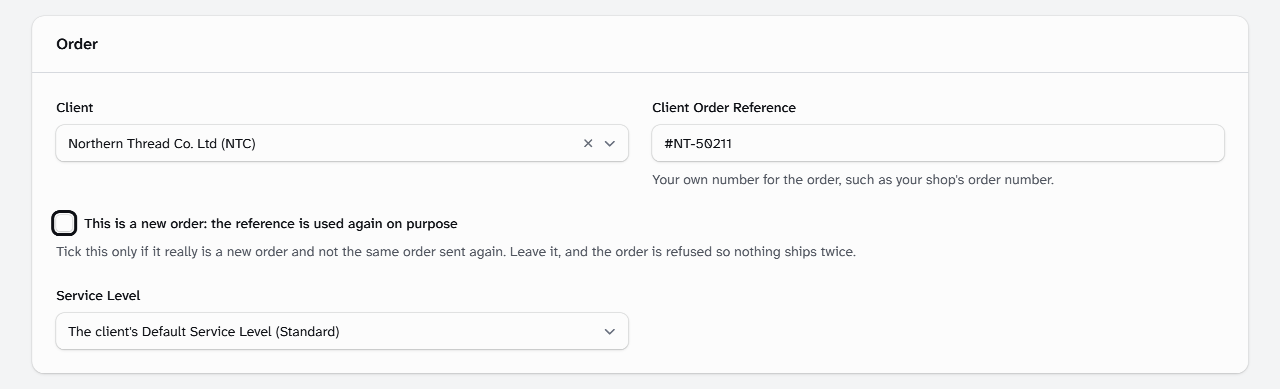
-
Leave Service Level to use the client's Default Service Level, or choose another.
-
Under Delivery, enter the Recipient name, Email, Phone and the address. Some Carrier Services need the email or phone, so give both if you have them.
-
Leave Country as
GB, or enterIMfor the Isle of Man. -
Under Lines, enter the SKU or SKU Alias in Product code, and the Quantity. Select Add a line for each further product.
-
Optionally, enter an Internal note under For the warehouse team only. It goes on the Order Timeline for staff, and the client never sees it.
-
Read the box under the form, if there is one, and fix what you can. Then select Send order.
Warnings under the form
The box lists every problem the checks find as you type. A problem a correction can fix says the order will be taken in and held:
This order will be taken in and held until these are fixed.
A problem no correction can fix says the order will be refused, with each reason:
This order will be refused if sent as it is.
Warnings never stop you sending. If a reference was used before, see An order is refused as a duplicate.
What happens next
Stockist shows "Order ORD-00000016 received" and opens the order's page. An order with nothing to fix is accepted at once: it gets its Must-Ship-By, and stock is reserved for it.
A held order also shows what holds it:
It is held until these are fixed: Missing details.
It waits at Received until each hold is fixed. To fix one, edit the order.
A refused order shows "Order refused" with every reason, and nothing is created. Correct the form and select Send order again. The reasons are listed in Taken in, held or refused.
Still stuck? Email [email protected]