
Receive a shipment with the Inbound Station
- How-to
- Inbound
- Who can do this: Admin, Warehouse Manager, Floor Supervisor, Warehouse Operative
- Checked on 27 October 2026
Scan a delivery's stock in at goods in, into totes, pallets or loose in Dock Staging, with lots and serials, and check in whole pallets from the ASN.
In short
Open the shipment's Inbound Station, scan NEW-TOT, NEW-PAL or LOOSE to say where stock goes, then scan each product. Scan CLOSE when a container is full, then the location it stands in.
Before you start
You need to be an Admin, a Warehouse Manager, a Floor Supervisor or a Warehouse Operative. If you don't see Open Dock Terminal, ask a Floor Supervisor.
The shipment must be marked arrived at its door. Use a handheld with a scanner, or a desk scanner. To scan by hand, enter the code in Scan and confirm with Enter.
Steps
Open the Inbound Station
- Go to Inbound › Inbound Shipments and search for the shipment, such as
INB-COL-000023. - In its row, select Actions, then Open Dock Terminal. The headline reads Ready.
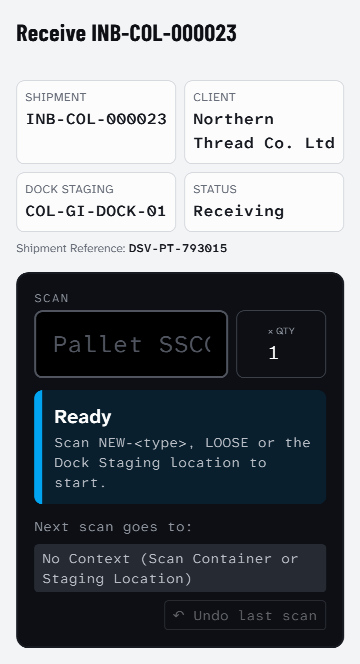
Say where the stock goes
- To fill a new Stock Container, scan
NEW-and its Container Type's prefix, such asNEW-TOTorNEW-PAL. It opens in Dock Staging.
Opened TOT-000041 (Picking Tote)
- To count stock loose in Dock Staging, scan
LOOSEor the door's location label instead. - Check Next scan goes to:. It shows the open container, or the location for loose stock.
Scan the stock
- Scan the product's barcode. Each scan receives one unit.
- For several units at once, enter the count in × qty first, then scan the product. A count entered in Scan reads as an unknown code.
- For a lot-tracked product, the station asks for its lot. If the ASN advises it, select Receive to confirm. Otherwise scan the lot number, enter the expiry date and select Receive.
- For a serial-tracked product, scan the unit's serial number when the station asks.
- Read the headline. It names what was received and the line's count.
+10 HB-SALT-SCRB-200 · lot SALT-2601
11 / 72 received · in TOT-000041
Anything that doesn't match the paperwork is received and logged as it is scanned: see Record shortages, over-receipts and damage.
Close a container
- Scan
CLOSE. The container's label downloads to print, with its net and gross weight. - Stick the label on, and scan the location label of the Dock Staging place it stands in.
PAL-000037 placed in COL-GI-DOCK-01
Check in a whole pallet from the ASN
- Scan the pallet's SSCC label. Every unit the ASN lists on it is received in one go, as a new UK Pallet.
Pallet checked in as PAL-000038
24 units from SSCC 050382930000030010 · in COL-GI-DOCK-03. Scan more into it, or CLOSE.
- Scan
CLOSE, then the location it stands in.
The Pallets on the ASN list shows each pallet as Expected, checked in or Not on truck. A pallet that won't check in is covered in An ASN pallet won't check in.
What happens next
The shipment is Receiving from the first scan, and the Manifest list shows each line's count. When the lorry is empty, complete receiving to log any shortage. The stock stays in Dock Staging until it is put away.
Still stuck? Email [email protected]