
Upload orders from a spreadsheet
- How-to
- Orders
- Who can do this: Admin, Warehouse Manager, Account Manager
- Checked on 28 October 2026
Upload a CSV file of one client's orders, check what will happen to each order, then confirm to take them in.
In short
Go to Orders, select Upload orders, choose the client and the CSV file, and select Check file. Read what will happen to each order, then select Confirm and take in.
Before you start
You need to be an Account Manager, a Warehouse Manager or an Admin. If you don't see Upload orders, ask the client's Account Manager. Your clients' Client Users and Client Account Administrators can upload their own orders the same way.
Have the file saved as CSV, with one row per order line and the column headings in the first row. One file holds one client's orders. The order upload file and CSV Mappings lists the columns.
Steps
Check the file
-
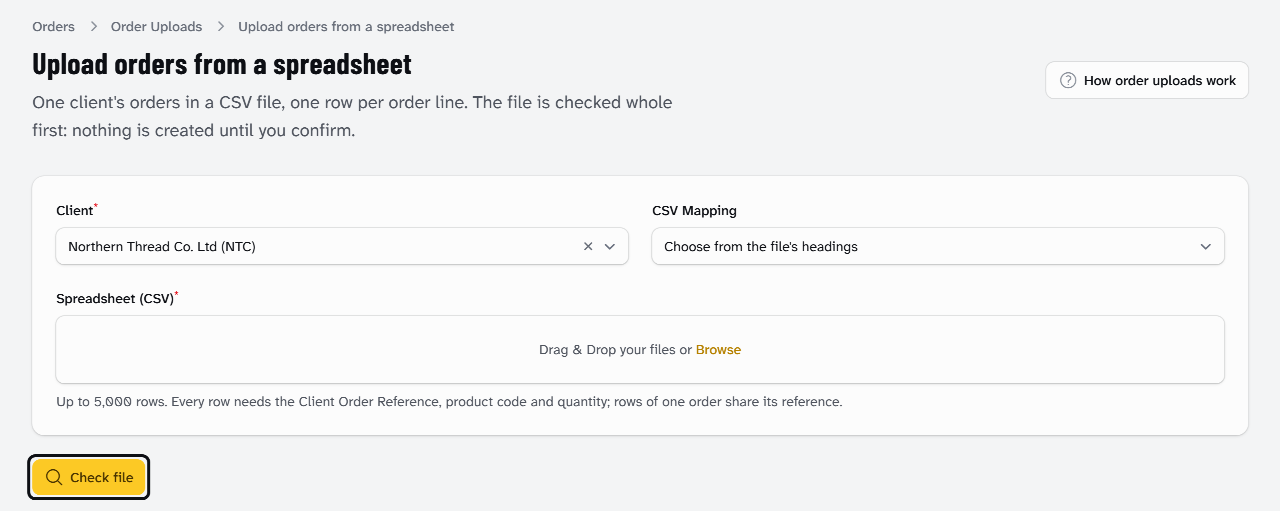
Go to Orders and select Upload orders.
-
In Client, choose the client, such as Northern Thread Co. Ltd (NTC).
-
Leave CSV Mapping as Choose from the file's headings. Stockist then uses the client's CSV Mapping whose headings the file has.
-
Under Spreadsheet (CSV), select Browse and choose the file, or drag it in.
-
Select Check file. Stockist shows "File checked" and opens the upload's page. Nothing is created yet.
If Stockist asks you to map the file's columns, see Map a new file's columns.
Map a new file's columns
Stockist asks this the first time a client's export arrives:
This client has no CSV Mapping yet and the file does not use the standard columns. Map the file's columns below; the mapping is saved for next time.
It also asks when a shop changes its export's headings:
The file's headings match none of the client's CSV Mappings: perhaps the shop's export has changed. Choose a mapping, or map the columns below.
To use a mapping the client already has, choose it in CSV Mapping and select Use this mapping and check. To map the columns:
- Under Map the file's columns, enter a Name for this mapping, such as the shop the export comes from.
- For each field, choose the file's heading for it, such as Order No for Client Order Reference. Leave Not in this file for a field the file doesn't have.
- If the file writes Service Levels its own way, select Add a value. Enter the Value in the file, such as
NDD, and choose its Service Level. - Select Save mapping and check. The next file with these headings is read without asking.
Read the check
The upload's page lists each order with its Rows in the file, Outcome and Reasons:
- Taken in: the order will be taken in and checked as normal.
- Taken in and held: it will be taken in, then held until the reason is fixed.
- Refused: it won't be taken in, for the reasons shown.
- Duplicate: its Client Order Reference was used before, so it is left out unless you confirm it is new.
- For a duplicate that really is a new order, tick This is a new order. Leave it if the client sent the same order twice. An order is refused as a duplicate explains.
- To keep a copy, select Download with results. You get your file back with a Result column, such as "Will be taken in."
Confirm
- Select Confirm and take in. Stockist says how many orders will be taken in, and how many of them held.
- Select Confirm. The orders are taken in, and a large file takes a minute or two.
Only the person who uploaded a file can confirm it. Anyone else who can upload sees the upload, without Confirm and take in.
What happens next
Stockist shows "Upload confirmed" with the number taken in, and the Order column shows each order's ORD number. Refused orders, and duplicates you left unticked, are not created.
The orders show under Orders like any other. Their Order Timeline says they came on the order upload, and held orders wait for their fix. To fix a refused order, correct its rows and upload a file of those orders only.
Still stuck? Email [email protected]