
Check billable activities and fix Capture Gaps
- How-to
- Billing
- Who can do this: Admin, Finance Manager, Warehouse Manager, Account Manager, Floor Supervisor
- Checked on 28 October 2026
See and download a client's Billable Activities to invoice from, fix Capture Gaps on shipped orders, and correct who caused extra work.
In short
Go to Billing › Billable Activities, choose a client and dates, and select Download CSV to invoice from. Fix open gaps on Billing › Capture Gaps, and correct who caused extra work on Billing › Exception Causes.
Before you start
Finance Managers, Warehouse Managers, Account Managers and Admins see Billable Activities, Capture Gaps and Never Sent. Only Finance Managers, Warehouse Managers and Admins fix a Capture Gap.
Floor Supervisors, Warehouse Managers and Admins correct Exception Causes, which Account Managers and Finance Managers can read. Warehouse Operatives, QA Checkers and clients don't see Billing.
Nothing here is priced. Stockist records the work as it is done, and you price it from each client's rate card.
Steps
See and download a client's activities
- Go to Billing › Billable Activities.
- Under Client, choose the client, such as Hebden Botanicals Ltd.
- Set From and To. They start on this month so far, in UK days.
- Read Totals by activity, then each activity below it. Totals are after any Activity Reversals.
- Select Download CSV for a spreadsheet with one row per activity or reversal.
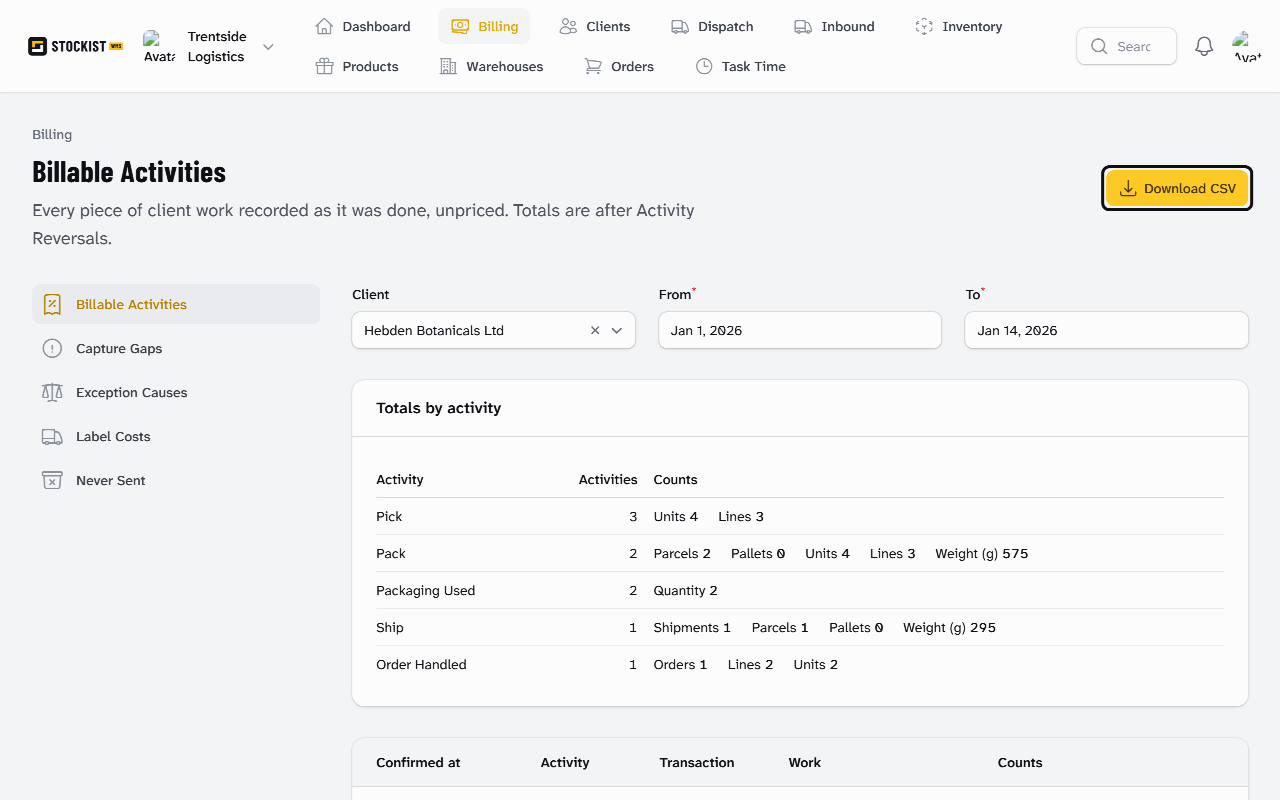
Each Billable Activity is recorded at the moment the work is confirmed:
| Activity | Recorded when |
|---|---|
| Receipt | A Stock Container, or stock received loose, is received at the dock |
| Delivery Received | An Inbound Shipment is completed |
| Pick | Each pick is confirmed by scan, one per order line |
| Pack | A parcel is closed at the Pack Station |
| Packaging Used | Packaging is scanned at pack |
| QA Check | A QA Check passes or fails |
| Re-pack | A reopened parcel is closed again |
| Red Tag Handling | A red-tagged order's stock leaves the Red Tag Location for good |
| Ship | The Shipment ships at its Close-Out |
| Order Handled | The order is Shipped |
| Cancelled After Release | An order is cancelled after it was released |
The list also shows each step's Task Time, such as "2m 05s". Manual marks an activity added by hand, with its reason. Exception Cause shows who caused a piece of extra work: select it to open that cause.
Fix a Capture Gap
After every Close-Out, Stockist checks each shipped order's activities against the work done. Anything out is a Capture Gap.
- Go to Billing › Capture Gaps. It lists the open gaps, starting on the warehouses that name you as their Warehouse Manager.
- Read the Gap, such as "Label Cost missing", and what is out under it.
- Finance Manager, Warehouse Manager or Admin only: select the gap's button, as the table below says.
- Enter a Reason, check any counts, and select Submit. The gap's Status changes to "Fixed by" and your name.
| Gap | What to do |
|---|---|
| Fewer units picked than shipped | Add by hand the missing Pick units |
| More units picked than shipped | Check off, saying how any overcharge is put right. Nothing is added |
| Pack missing, Ship missing, Order Handled missing | Add by hand the missing activity, with the counts Stockist worked out |
| Label Cost missing | Add the missing rate first, then Price again: see Set the label rates |
With no rate in force on the day it shipped, Price again is refused:
No Carrier Rate Table in force on 14 Jan 2026 prices every label of SHP-COL-00000007. Add or correct the rate, then fix the gap again.
Finance Managers and Admins can instead select Enter Label Cost on the order's page, with a reason. That fixes the gap too.
Correct an Exception Cause
An Exception Cause says who caused extra work, such as a Re-pack or a Delivery Complaint.
- Go to Billing › Exception Causes.
- Floor Supervisor or above: select Correct on the row.
- Choose the right Exception Cause, and enter a Reason for the correction.
- Select Submit. Stockist shows "Exception Cause corrected", and the row keeps the earlier cause, such as "Was Carrier".
Check bookings that were never sent
- Go to Billing › Never Sent. It lists bookings the carrier manifested before their order was cancelled, so nothing went.
- Narrow it by Client, Carrier Account and the Found manifested from and Found manifested to days.
- Select Download CSV, and query each booking on the carrier's invoice.
See Task Time
- Go to Task Time. Everyone on your staff can open it.
- Choose a Person and Client, and set Confirmed from and Confirmed to. The totals show by person and activity.
Task Time is credited to whoever was signed in on the device, so everyone signs in as themselves. Warehouse Operatives see their own time, and Floor Supervisors see their Warehouse Operatives' and QA Checkers'. Warehouse Managers, Account Managers, Finance Managers and Admins see everyone's.
What happens next
A recorded activity is never changed or removed. Work that is undone, such as a reversed receipt or a reopened parcel, adds an Activity Reversal with negative counts.
When an order ships with a Capture Gap, the bell tells the warehouse's Warehouse Managers and the client's Account Manager. A gap never stops an order shipping.
Your clients never see Billing, Exception Causes or Task Time.
Still stuck? Email [email protected]