
Check an order in QA
- How-to
- Dispatch
- Who can do this: Admin, Warehouse Manager, Floor Supervisor, QA Checker
- Checked on 2 November 2026
At a QA Station, scan every unit of an order In QA against what it should hold, then pass it on to packing or fail it, and send an order to QA by hand.
In short
On your QA Station's screen, scan a tote of the order and scan every unit. Select 4 Pass if everything agrees, or 3 Fail if anything is wrong, missing or damaged.
Before you start
You need to be a QA Checker, a Floor Supervisor, a Warehouse Manager or an Admin. Nobody can pass an order they picked.
Work at the screen linked to your QA Station, such as QA 1. On a screen that isn't linked, QA Station says "This screen isn't linked to a station yet". Ask a Warehouse Manager or Floor Supervisor to link it: see Link a screen to its station. For signing in and reading the screen, see Work at a station screen.
An order is In QA when the client's rules ask for a check, or a Floor Supervisor sends it. A scan at the bench that disagrees with what was picked also sends it. Its totes come to you instead of to a Pack Station.
Steps
You can type any code into the scan field and select Enter instead of scanning it. While the scan field is empty, the number keys pick the numbered tiles and choices.
Check the order
The QA Station opens on Waiting for QA at its warehouse. It lists that warehouse's orders In QA only: Rush first, then the earliest collection. Each order shows why it's in QA and where its totes are. An order you picked on is greyed: "You picked: someone else checks".
-
Scan a tote of the order, such as
TOT-000034, or its Transaction Number. Selecting an order in the list doesn't start a check. -
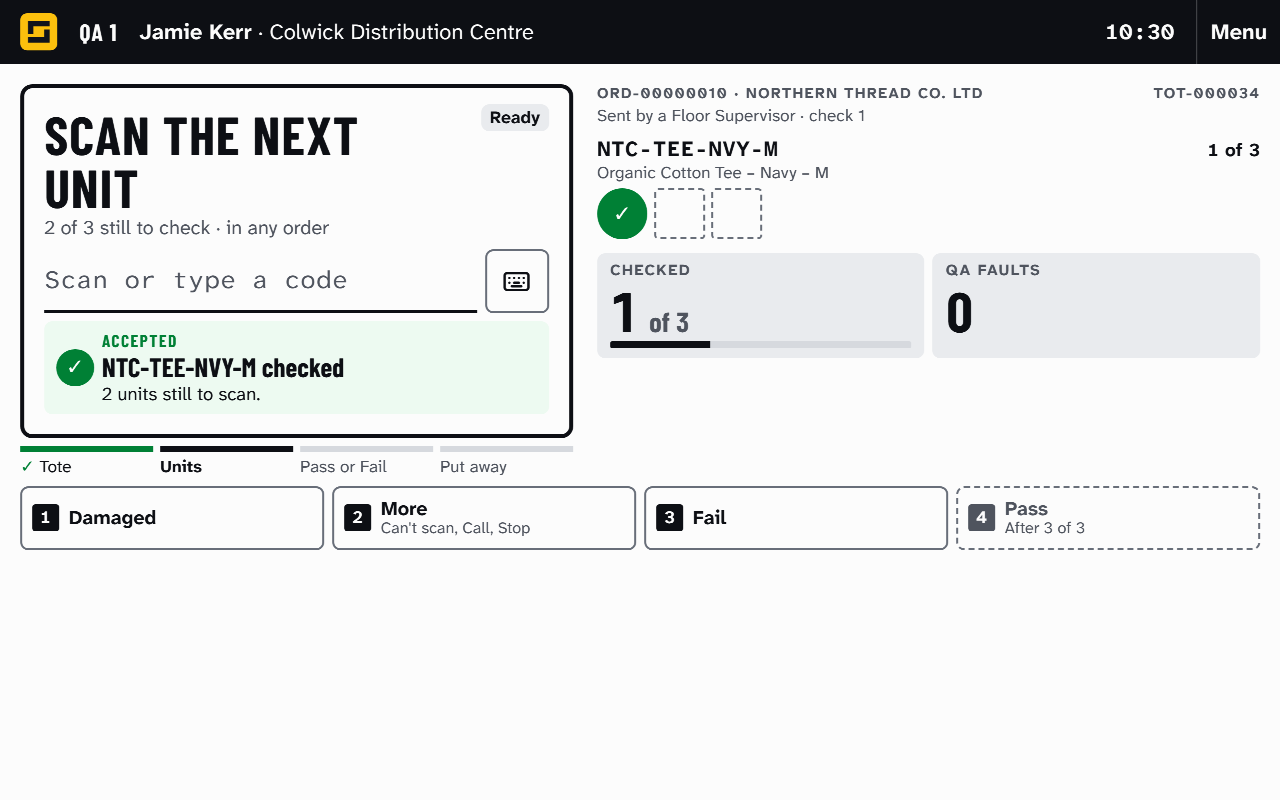
Scan every unit in the order's totes. The screen shows one box per unit and fills it as you scan. A line of more than 12 units shows a bar instead.
-
When it says Scan its lot or Scan its serial, scan the lot or serial on the unit's label. The screen never shows the code.
-
When every unit is checked and nothing is wrong, select 4 Pass:
Passed: ORD-00000010
-
Take the totes where the Goes To sign says. That is Packing at any Pack Station, or the bench with the order's closed parcels.
If you picked on the order, the station refuses it at your first scan and names the Pick List. Another QA Checker must check it.
During a check, the tiles are 1 Damaged, 2 More, 3 Fail and 4 Pass. A wrong item or an extra unit is recorded as you scan it. It shows in the red Put aside tray. While the tray or a damaged mark holds anything, Pass stays off with QA Faults found.
On the home screen, 1 Can't scan and 2 Supervisor Call help. During a check, they are under 2 More:
- Can't scan: type the code from the label into the scan field, then Enter.
- Supervisor Call: tells your Floor Supervisors you need help at the station's Quarantine Location.
Fail the check
- For a damaged unit, select 1 Damaged and scan it. One scan checks it and marks it damaged, with an orange triangle. You can mark a unit you already scanned the same way. Select 1 again to go back without marking.
- Put each unit listed in the Put aside tray to one side, and carry on scanning.
- Select 3 Fail. Under What was found, read the wrong items, extra units, and damaged and missing units by line.
- Select 1 Fail it, or 2 Keep checking to go back to the check.
- Put the damaged units in the Quarantine Location under Put damaged in, such as
COL-QA-QA-01, and scan it. Any Quarantine Location in the warehouse will do. If the station has no default, it asks you to scan one. - If anything was put aside, put those units in an empty tote and scan it, for Return to Stock. The order's own tote, or a tote holding stock, is refused.
- Take the order's tote to the Red Tag Location under Take the order's tote to, such as
COL-DS-RT-01. It waits there for its re-picks.
Each thing found wrong is a QA Fault. Missing and damaged units are picked again, and the order comes back to QA once they arrive.
If every unit was found and none is damaged, the station says Check again after the tote. That happens when the only QA Faults are extra units, for example. The new check starts straight away.
Stop and carry on later
-
Select 2 More, then Stop checking. The check stays open.
-
To carry on, scan the order's tote again. Anyone allowed can, at any QA Station:
Carrying on: ORD-00000010
Damaged marks stay on the screen where you made them. If you carry on at another station, mark them again.
Send an order to QA
-
Floor Supervisor or above: go to Orders › Orders and open the order. It must be Picked or being packed.
-
Select Send to QA. Type Why it goes to QA: staff read it on the Order Timeline, the client doesn't.
-
Select Submit:
ORD-00000008 is In QA
If the order has closed parcels, reopen each one at its Pack Station first. The QA Checker then sees every unit.
What happens next
A passed order goes to packing: take its totes to a Pack Station, see Pack an order at the Pack Station. The client sees that it passed QA, never who checked it.
After a fail, the client sees that QA found a problem being put right. The QA Check runs again once the re-picked units arrive.
Still stuck? Email [email protected]